Setting up webhooks in Firmhouse
Creating a webhook in Firmhouse is a simple three-step process:- Get the webhook URL from the application you want the data sent to
- Use that URL in the webhook section in Firmhouse
- Set up what events you want your webhook to listen to and notify you about when it occurs
Create a webhook in Firmhouse
Steps
- Navigate to Apps in the sidebar
- Find the Webhooks app and click Configure
- Click New outgoing webhook on the top-right
- Enter a Name for the webhook, such as “Activated subscription”
- In the Endpoint url field, enter the URL you want to receive the webhook. This is where the data will be sent once the webhook is triggered. The URL will receive an HTTP POST request when the selected event happens.
- If you intend to use Basic authentication to secure your webhook, provide the Username and Password of the HTTP Basic auth, otherwise leave Authentication type on None
- If the receiving system requires a token or another custom HTTP header, add one header per line under Custom HTTP headers, for example
X-Webhook-Token: your-secret-token. Firmhouse encrypts these values and hides them after saving. Firmhouse-managed request headers cannot be overridden. - From the Event dropdown, select the event you want to be notified about (e.g., Subscription activated)
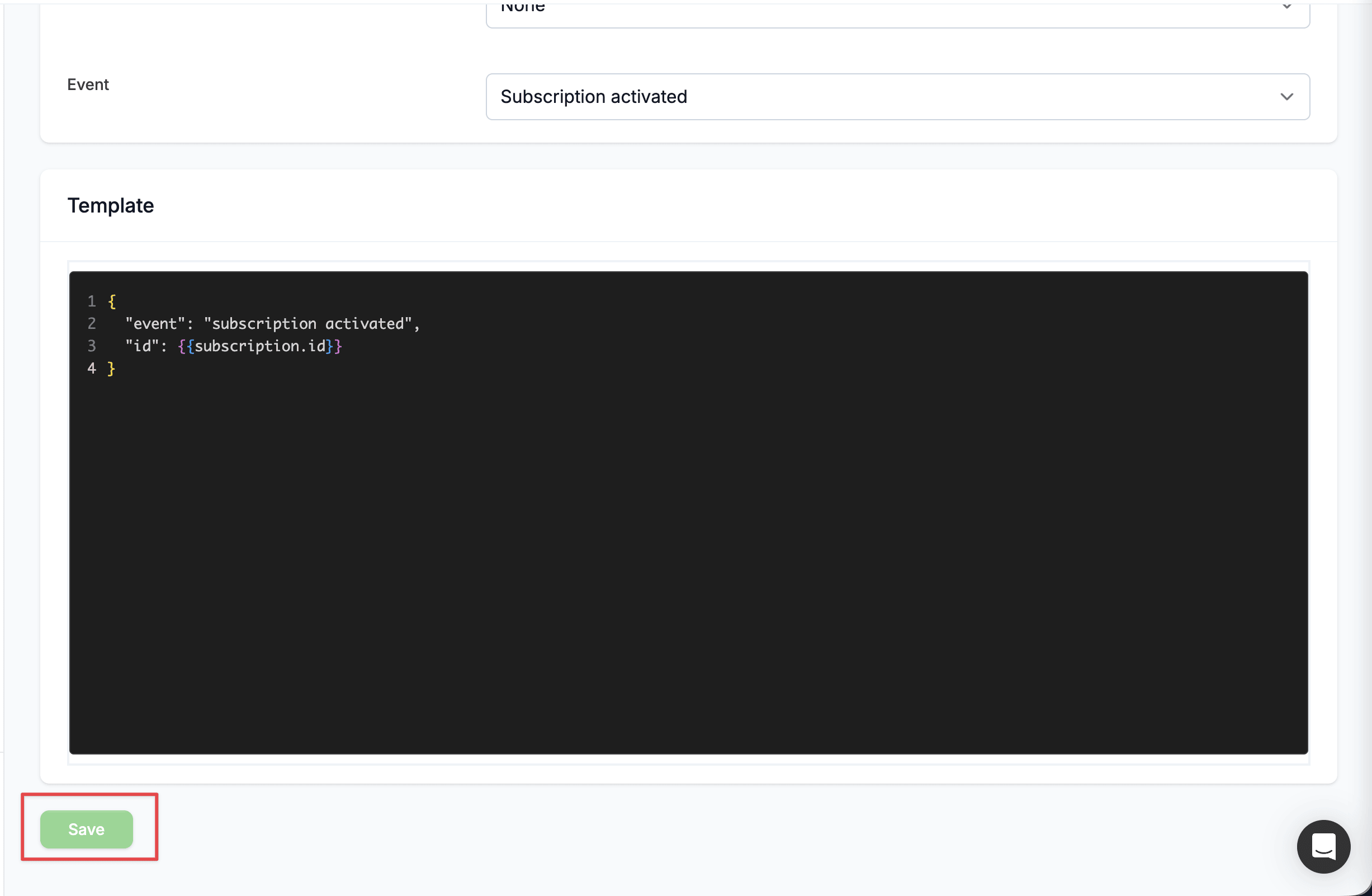
- In the Template field, configure your payload using JSON format and Liquid tags. For example:
The
{{event}}tag renders the name of the selected event (for examplesubscription_activated) and is available in every webhook template. Learn more about Liquid tags in Firmhouse in the developer documentation. - Click Save to save the outgoing webhook
Prevent duplicate processing
Every webhook request includes anIdempotency-Key HTTP header. The same key is used when Firmhouse retries a delivery, so your receiving system can safely ignore a request it has already processed.
Enable or disable a webhook
You can enable or disable your outgoing webhook temporarily without having to delete the webhook itself or its content.Steps
- Navigate to Apps in the sidebar
- Find the Webhooks app and click Configure to open a list of already saved outgoing webhooks
- Click on the particular webhook you want to enable/disable and click Edit
- To enable or disable the webhook, check or uncheck the Enable checkbox, respectively
- Click Save to save the outgoing webhook
Subscription discount webhook events
If you want to automate discount lifecycle handling for subscriptions, use these events:subscription_discount_applied: sent when a discount is first applied to a completed subscription.subscription_discount_updated: sent when an applied discount changes, including usage updates and deactivation (active = false).subscription_discount_deleted: sent when an applied discount is removed, including Shopify discount removals from the Applied discounts section.
Churn request lifecycle webhook events
Use churn request lifecycle events to follow a customer’s cancellation or pause journey independently from subscription state changes:churn_request_initiated: sent once when a new cancellation or pause flow starts. Revisiting the same active flow does not send it again.churn_request_prevented: sent when the customer accepts a winback offer instead of completing the requested cancellation or pause.churn_request_completed: sent approximately five minutes after the requested cancellation or pause is completed, allowing time for completion-page feedback to be saved before the payload is generated.churn_request_feedback_updated: sent approximately five minutes after free-text feedback is saved for a completed or prevented request.promotional_offer_accepted: sent when the customer accepts a configured promotional offer during a cancellation flow. Unlikechurn_request_prevented, this event does not fire for pause, skip, or legacy discount winbacks.
promotional_offer_accepted event is separate from offer_completed, which tracks an invoice-linked purchase offer after its invoice is paid.
Every event provides both churn_request and subscription Liquid objects. The churn request fields are:
churn_request.id: the stable request ID.churn_request.flow:cancellationorpause.churn_request.status:initiated,prevented, orcompleted.churn_request.reason_titleandchurn_request.reason_description: the selected reason, when available.churn_request.follow_up_action: the selected action (pause_subscription,skip_next_order,offer_discount, orcancel). It is blank on an initiated request until the customer selects a reason.churn_request.feedback: the saved free-text feedback, when available.churn_request.created_at: when the request started.churn_request.updated_at: when the request, including its feedback, was last updated.
promotional_offer_accepted event also provides a promotional_offer Liquid object with:
promotional_offer.id: the accepted issued-offer ID.promotional_offer.offer_definition_idandpromotional_offer.offer_definition_name: the configured offer that was accepted.promotional_offer.status,promotional_offer.accepted_at, andpromotional_offer.entry_point: the acceptance state and origin.promotional_offer.benefitandpromotional_offer.commitment_snapshot: the benefit and optional commitment snapshots that were actually accepted.promotional_offer.commitmentremains a boolean indicating whether a commitment exists.
flow, status, and follow_up_action fields distinguish similar outcomes. For example, a cancellation request prevented by a pause has flow: cancellation, status: prevented, and follow_up_action: pause_subscription. A customer who completes the dedicated pause flow has flow: pause and status: completed.
Example lifecycle payloads
Configure one outgoing webhook for each event you need. These examples show representative rendered payloads; use the matching Liquid variables in your webhook template.churn_request_initiated:
churn_request_prevented for a cancellation-flow pause winback:
promotional_offer_accepted for a configured churn-prevention offer:
churn_request_completed for a standalone pause flow:
churn_request_feedback_updated:
churn_request_initiated is sent. Terminal events are generated once per status transition. Outgoing webhook delivery remains retryable; use churn_request.id together with the event name for one-time lifecycle events.
Feedback payload generation is delayed by approximately five minutes. If feedback is edited more than once during that window, each queued delivery renders the latest saved feedback and updated_at; intermediate revisions are not delivered separately. Use churn_request.id, the event name, and churn_request.updated_at to deduplicate deliveries of that latest state.
These events do not replace subscription_cancellation_initiation, subscription_cancellation_confirmation, or subscription_paused; existing subscription-state webhooks continue to behave as before.
Subscription paused webhook event
Usesubscription_paused to react when a customer pauses their subscription. The subscription context exposes the pause details, so you can tell a temporary pause (the customer chose an automatic resume date) from an indefinite one and see the reason and winback offer behind it.
Recommended template:
subscription.paused_untilis set when the customer paused for a fixed period and is blank for an indefinite pause. A present value means the customer already has a resume date, which is useful for excluding them from reactivation campaigns.subscription.pause_churn_requestexposes the customer’s most recent finalized pause request when you use pause reasons and winback offers: the winback offer taken (follow_up_action), the reason (reason_title,reason_description), the customer’sfeedback, and the requeststatus. Usesubscription.cancellation_churn_requestfor the cancellation flow, orsubscription.latest_churn_requestfor the most recent request across both flows.
Subscription metadata updated webhook event
Usesubscription_metadata_updated when your integration should react whenever a subscription’s metadata changes.
This event uses the subscription Liquid object as usual. When the payload is generated from a tracked version, the template can also access change_set.metadata.before and change_set.metadata.after to compare the previous and new metadata values for each key.
Recommended template:
change_set values when you need to branch on exactly what changed. If there is no previous value for a key, the corresponding before value is blank.
Extra field answer updated webhook event
Useextra_field_answer_updated when your integration should react to a customer’s extra field answer changing. The payload can access the answer that triggered the event and compare its previous and updated values:
extra_field_answer.parameterized_name to identify the changed field. The existing subscription-wide extra_field values remain available when the integration also needs the current values of other fields.
Order and invoice ready webhook event
Useorder_invoice_ready when an integration needs both an order and its final invoice. Firmhouse sends this event only after the order is confirmed or fulfilled, the invoice is final, and the relationship between them is known. Credit invoices are excluded.
The event provides both order and invoice Liquid objects:
Order scheduled webhook event
Useorder_scheduled to react when an order enters the scheduled state. This is useful when you want to trigger automations, notify external systems, or run follow-up processing in your own application.
Recommended template:
Subscription upcoming billing webhook event
Usesubscription_upcoming_billing when you want to run checks or automations before billing-cycle order generation.
- This event is available for order-based projects with plan support and opt-out order-based projects without plans.
- Firmhouse evaluates eligible subscriptions every night at 01:00.
- You can configure how many days before the next billing date this event should fire in the webhook settings (1-30 days, default: 1 day). For subscriptions without a plan, the next shipment date is also the next billing date, so Firmhouse uses the closest upcoming shipment.
- By default, this webhook is also sent for paused subscriptions so you can remind your customers to resume their subscription when their planned order date is approaching. You can also turn off Also send while subscription is paused in the webhook settings if paused subscriptions should be fully skipped.
- By default, subscriptions marked as non-paying are skipped. Turn on Also send while subscription is marked as non-paying if you still want this webhook for subscriptions with unresolved payment issues.
upcoming_billing_date Liquid variable contains the future date that triggered the webhook. For subscriptions without a plan, it is the closest upcoming product shipment date.
The order Liquid object contains a preview of the next order.
Iterate over order.order_lines to access each line’s quantity and product. Each product exposes:
available: whether the product is available in Firmhousein_stock: whether the product is in stock according to the latest automatic product syncstock: the latest stock quantity stored in Firmhouse
in_stock remains true for products that do not use Shopify stock tracking. See Product availability & stock rules for the exact stock rules.
Product stock availability webhook events
Firmhouse offers stock availability events at two levels:- Product level:
product_out_of_stockandproduct_back_in_stockare sent once per product when its stock availability changes, regardless of subscriptions. Deliveries include theproductandprojectLiquid objects, like theproduct_createdevent. - Subscription level:
subscription_product_out_of_stockandsubscription_product_back_in_stockare sent once for each affected subscription, so every delivery includes both the affectedproductandsubscriptionLiquid objects.
- The subscription is activated, paused, or in the process of being cancelled (cancellation in progress or pending cancellation). Draft, inactive, and cancelled subscriptions do not receive these events.
- The subscription currently contains the product as an active ordered product. Returned or owned products do not count.
Upcoming order notice webhook event
Useupcoming_order_notice when you want to notify an external system before a subscription’s upcoming order is created.
By default, this webhook is also sent for paused subscriptions when upcoming order notices are enabled for paused subscriptions in the email settings. Turn off Also send while subscription is paused in the webhook settings if this specific webhook should skip paused subscriptions.
Recurring order skipped webhook event
Userecurring_order_skipped to notify an external system when Firmhouse skips a recurring order or Shopify subscription billing attempt for one of the supported reasons below. Other skip paths do not emit this event, and customer-initiated skips from the customer portal are not included.
The event is available in webhook configuration when the Product availability & stock rules feature is enabled for your project.
The webhook includes the subscription context and a recurring_order_skip.reason value that explains why the order was skipped:
locked_license: the Firmhouse project was locked, so order or billing-attempt creation could not continue.nothing_to_ship: there were no products to include in the recurring order.minimum_amount_not_reached: the recurring order did not meet the project’s minimum order amount.unavailable_product: the subscription contains a product that is no longer available, and the project is configured to skip orders with unavailable products.out_of_stock: the subscription contains an available product that is out of stock, Shopify inventory tracking is enabled, and the project is configured to skip these orders.product_quantity_out_of_range: the subscription’s product quantity did not meet the active plan’s minimum or maximum product quantity rule.
{{recurring_order_skip.reason}} in the native Recurring order skipped email. See Supported customer emails overview to enable and customize that email.
Recommended template:
GraphQL bulk operation finished webhook event
Usegraphql_bulk_operation_finished when your integration starts GraphQL bulk operations and should be notified when the JSONL result file is ready.
This event uses the bulk_operation Liquid object in the webhook template. See GraphQL bulk operations for the setup steps and recommended JSON template.
Editing a webhook
Firmhouse allows you to edit the configuration of your webhooks.Steps
- Navigate to Apps in the sidebar
- Find the Webhooks app and click Configure to display a list of already saved outgoing webhooks
- Click on the webhook that you want to edit and click on the Edit button
- Make the necessary changes to the configuration fields of the webhook
- Click Save to save the changes
Send a test event
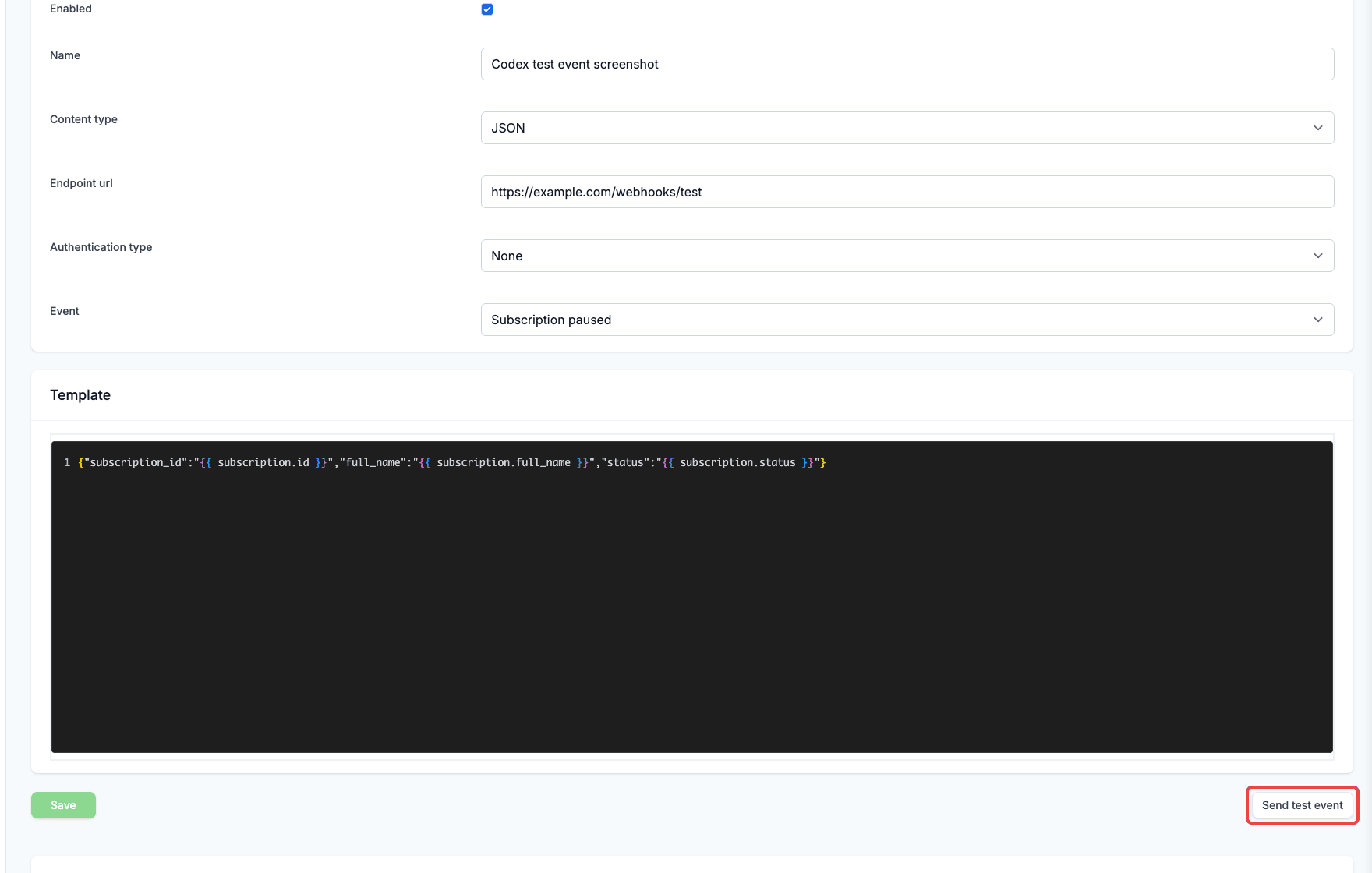
Use Send test event to check a saved outgoing webhook before waiting for a real customer event. This action sends the saved webhook configuration with sample Firmhouse data and records the result in the Webhook event log. If you changed the template, content type, or any other setting on the page, click Save before sending a test event.Steps
- Navigate to Apps in the sidebar.
- Find the Webhooks app and click Configure.
- Open an existing outgoing webhook.
- Review or update the webhook template.
- Click Save if you made any changes.
- Click Send test event.
- Check the Webhook event log for the request body, response code, response body, duration, and attempt count.
Deleting a webhook
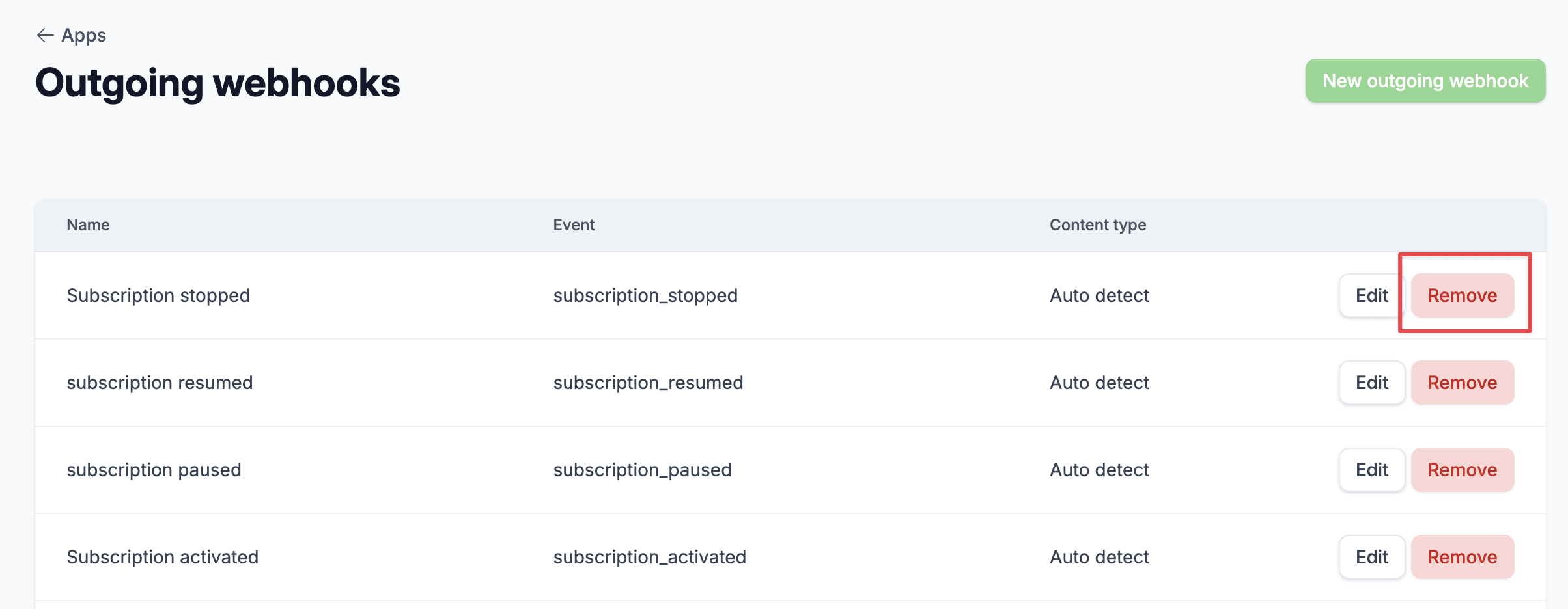
Firmhouse allows you to delete webhooks you no longer need.Steps
- Navigate to Apps in the sidebar
- Find the Webhooks app and click Configure to display a list of already saved outgoing webhooks
- Click on the Remove button on the far right of the webhook that you want to delete
- You will get a prompt “Are you sure you want to remove this outgoing webhook?”, click Ok to confirm the delete action