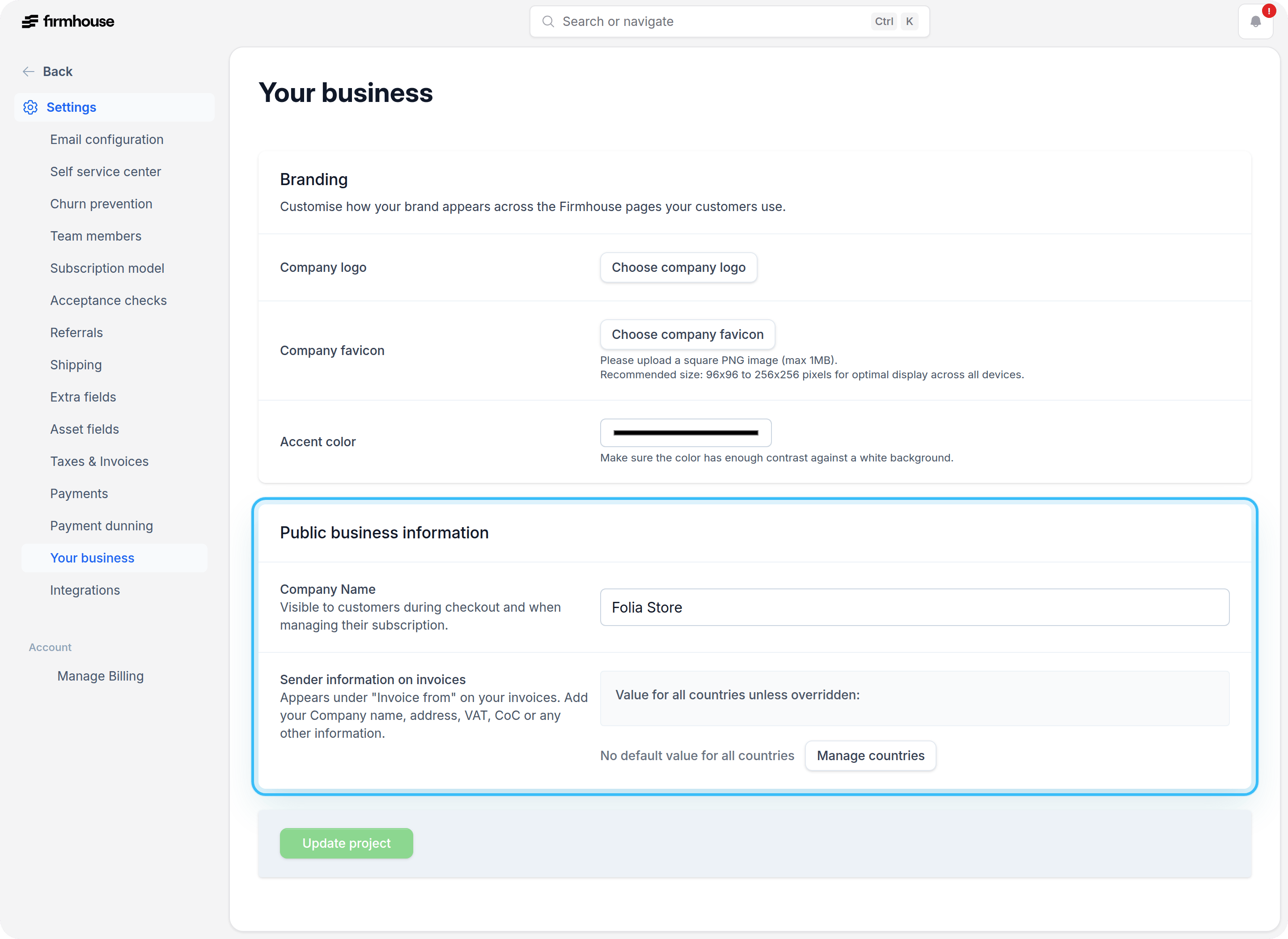
Branding
The first section on this configuration page is the Branding section. You should complete three actions here:- Company Logo: Choose a company logo to display on your checkout and Self-Service Center. If the upload doesn’t show right away, click on “Update project” to get the picture to load.
- Company Favicon: Upload a custom favicon (the small icon that appears in browser tabs) for your project. This requires a custom domain to be set up. Upload a square PNG image (max 1MB), recommended size is 96x96 to 256x256 pixels for optimal display across all devices.
- Accent Color: Select an accent color that fits your company’s branding. This color is used in some areas of the Self-Service Center.
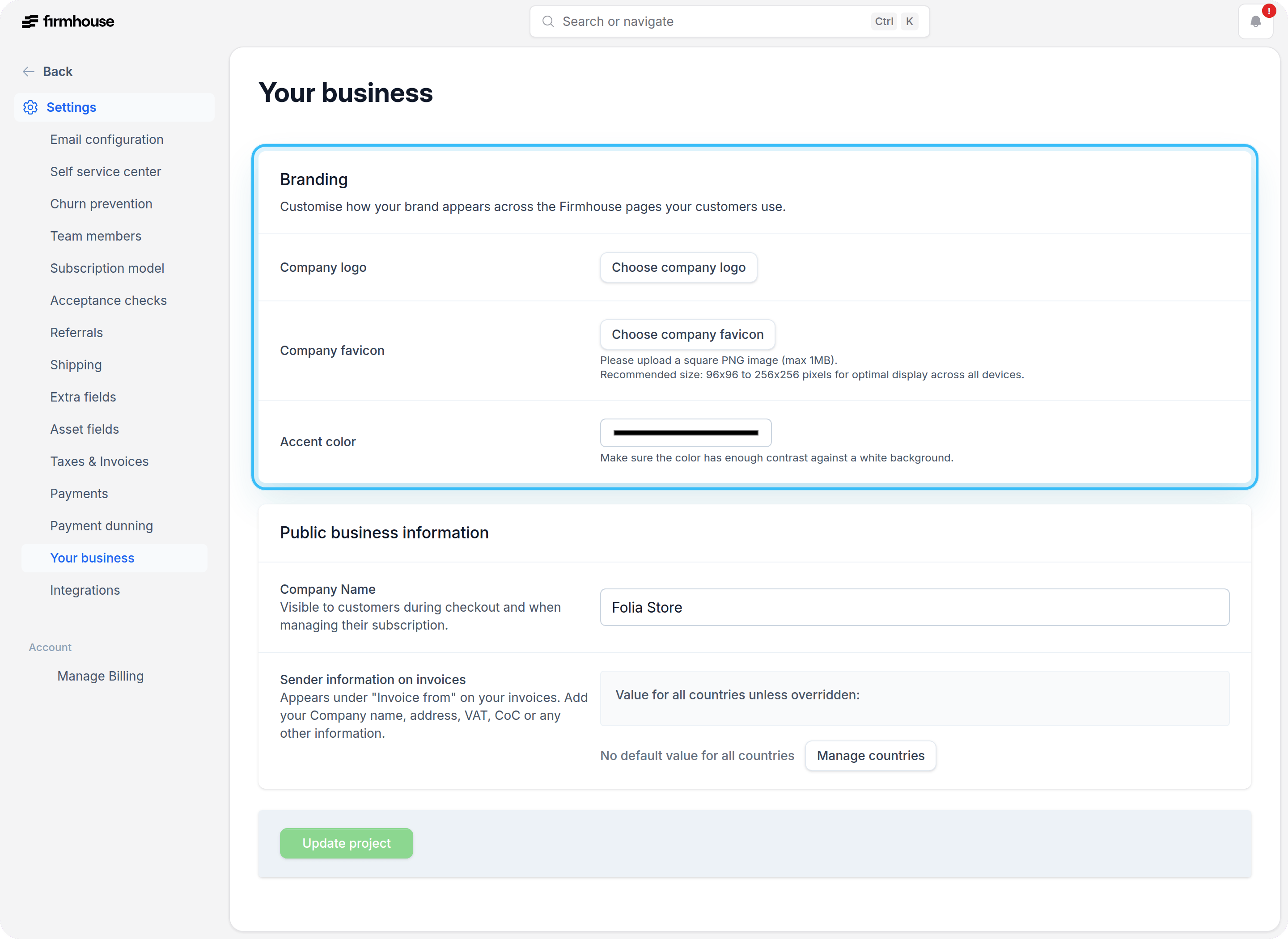
Public Business Information
The second section requests your public business information. You’ll need to provide: Company Name: This will be shown during checkout and in the Self-Service Center. Company Information: This will be added to the invoices generated in Firmhouse. Make sure you enter all legally required fields here, based on the country that you’re operating from.