

- Customer clicks cancel from their dashboard
- Chooses from one of the predefined cancellation reasons (if available)
- Gets offered a winback
- Takes the winback offer or proceeds to cancel and gives feedback
Enable the new Cancellation flow
Steps
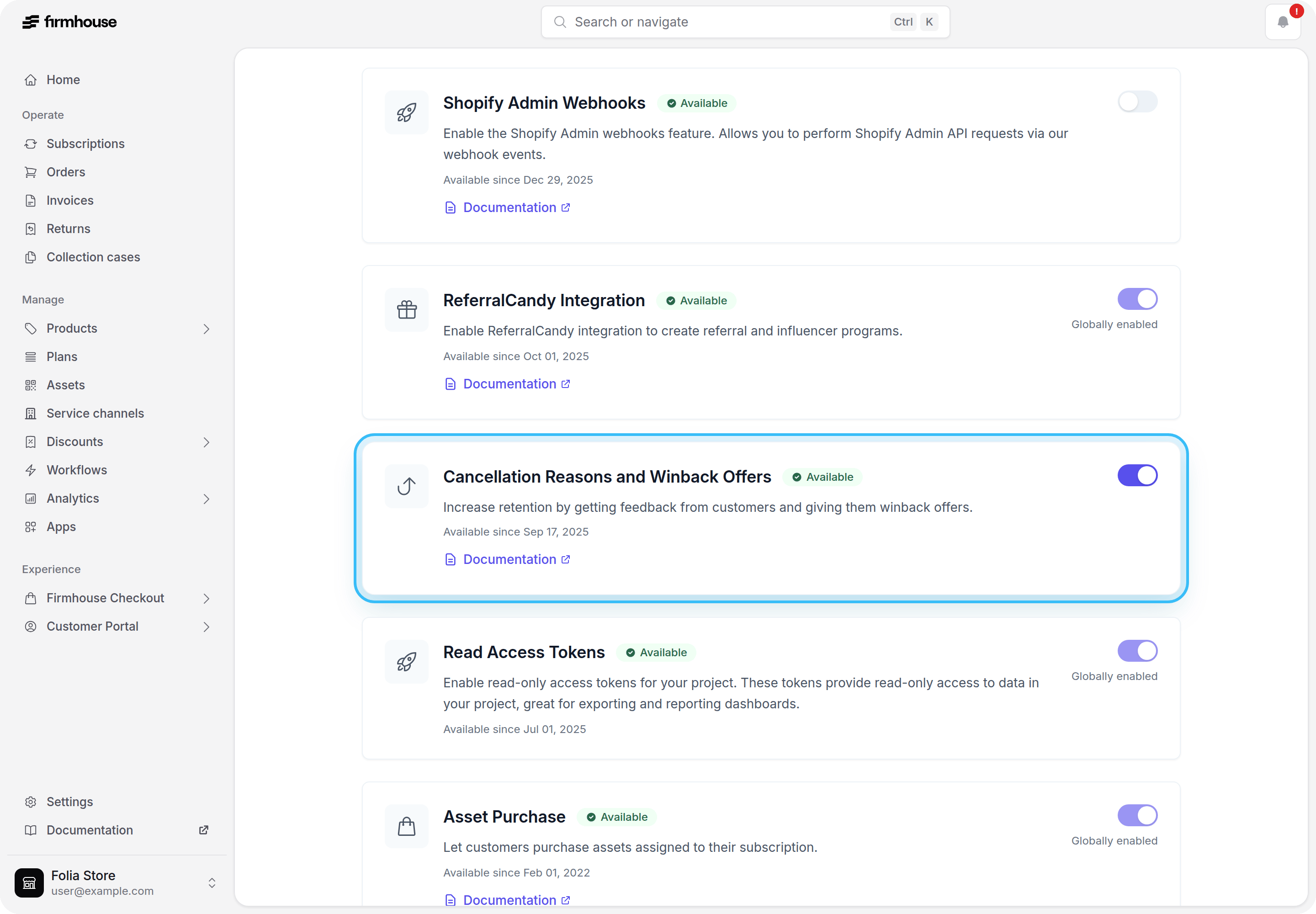
- Go to your project in Firmhouse and click New Features from the sidebar.
- On this page, enable Cancellation Reasons and Winback Offers.
Add a cancellation reason and winback offer
Steps
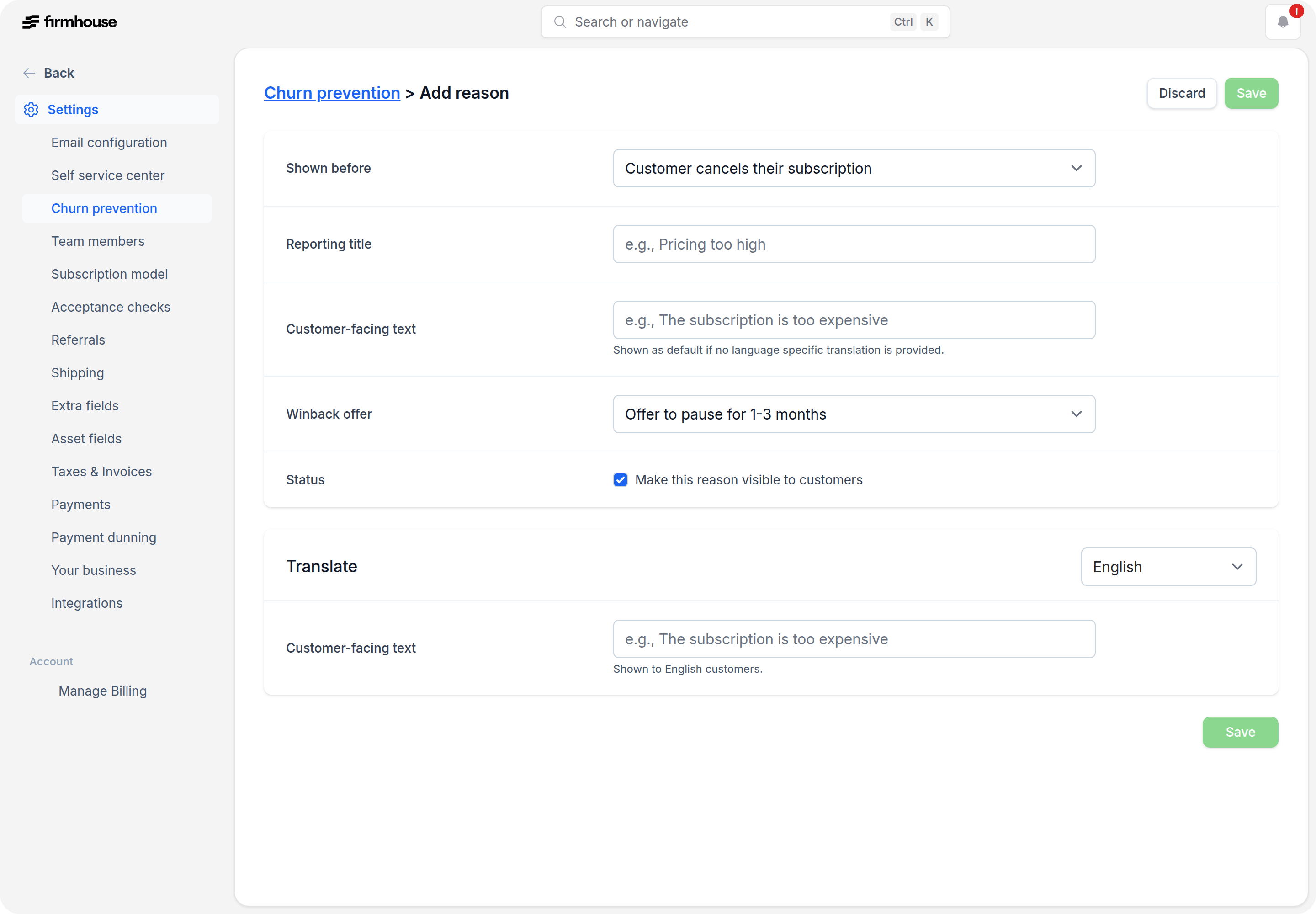
- In your Firmhouse project, from the sidebar go to Settings > Churn prevention.
- Click Add Reason.
- Fill out a Reporting title, which is the language-independent title of this reason to be used in reporting exports and dashboards.
- Fill out the Customer-facing cancellation reason, which is the text that people will see in the Cancellation flow.
- Under What customers see, choose an Alternative action: Continue to cancellation, offer to pause for 1–3 months, or offer to skip 1–3 orders.
- Enable or disable the reason with the Status checkbox.
- Click Save.
Connect a promotional offer to a reason
When the Workflow Builder preview is enabled, What customers see lets you expand the promotional offers linked to a saved reason. Only offers with an explicit condition targeting this reason can appear during cancellation. Every other eligibility condition must still match the customer. If several offers qualify, the offer with the lowest priority number is checked first. Expand Linked offers and choose an offer to review its conditions. To create one, check Create an offer for this reason, then choose Save and create offer to open a draft with that reason preselected. After saving the offer, you return to the reason. The list shows each offer’s status and omits archived offers. An eligible promotional offer appears first. The configured pause or skip alternative is shown alongside it and remains available when no offer is available or the customer declines it. Continue to cancellation adds no pause or skip alternative; it does not disable promotional offers.Record a reason when cancelling or pausing for a customer
When your team performs the action from a customer’s subscription page, the cancellation or pause form shows the active reasons configured for that flow. By default, selecting a reason is optional: select the reason the customer gave you, or leave it blank for an internal action where no customer reason should be recorded. To require reasons for team actions:- Enable Cancellation Reasons and Winback Offers and Pause Reasons and Winback Offers in New Features.
- Add at least one active reason for each flow in Settings > Churn prevention.
- Go to Settings > Subscription model and enable Require a reason when team members cancel or pause subscriptions.
Start a cancellation or pause with a known reason
When another system already knows why a customer wants to cancel or pause, add the active reason ID to the flow URL as thechurn_reason_id query parameter:
Complete a custom cancellation flow without another confirmation
If your Customer Portal v2 template already asks the customer to confirm, submit that confirmation directly tosubscription.complete_churn_request_url. This skips the Firmhouse confirmation page while keeping the change behind an authenticated, CSRF-protected POST request.
<input type="hidden" name="flow" value="pause"> and use a reason configured for pauses.
Only use this endpoint for a customer action that has already presented a clear confirmation. A GET request never completes the change. Firmhouse still verifies that the reason is active and belongs to the current project and flow, and rechecks the subscription’s cancellation or pause eligibility before applying it. An invalid reason returns the customer to the standard reason-selection flow.
Pause Reasons and Winback Offers
The same churn prevention flow is available when customers pause their subscription. Instead of pausing immediately, the flow asks customers why they are pausing, can respond with a winback offer, and collects feedback after the pause.Enable
- Go to your project in Firmhouse and click New Features from the sidebar.
- On this page, enable Pause Reasons and Winback Offers.
Add a pause reason
- In your Firmhouse project, from the sidebar go to Settings > Churn prevention.
- Click Add reason and set Shown before to Customer pauses their subscription.
- Fill out the reason the same way as a cancellation reason. The Alternative action options are: Continue to pause, offer to pause for 1–3 months with an automatic resume date, and offer to skip 1–3 orders. Promotional offers are only shown during cancellation, so pause reasons do not show the promotional-offer section.
View Cancellation feedback and Winback results per customer
When a customer completes a Cancellation flow - either by taking a winback offer or by cancelling - their choices and feedback can be seen on the Customer detail page in the Firmhouse admin portal.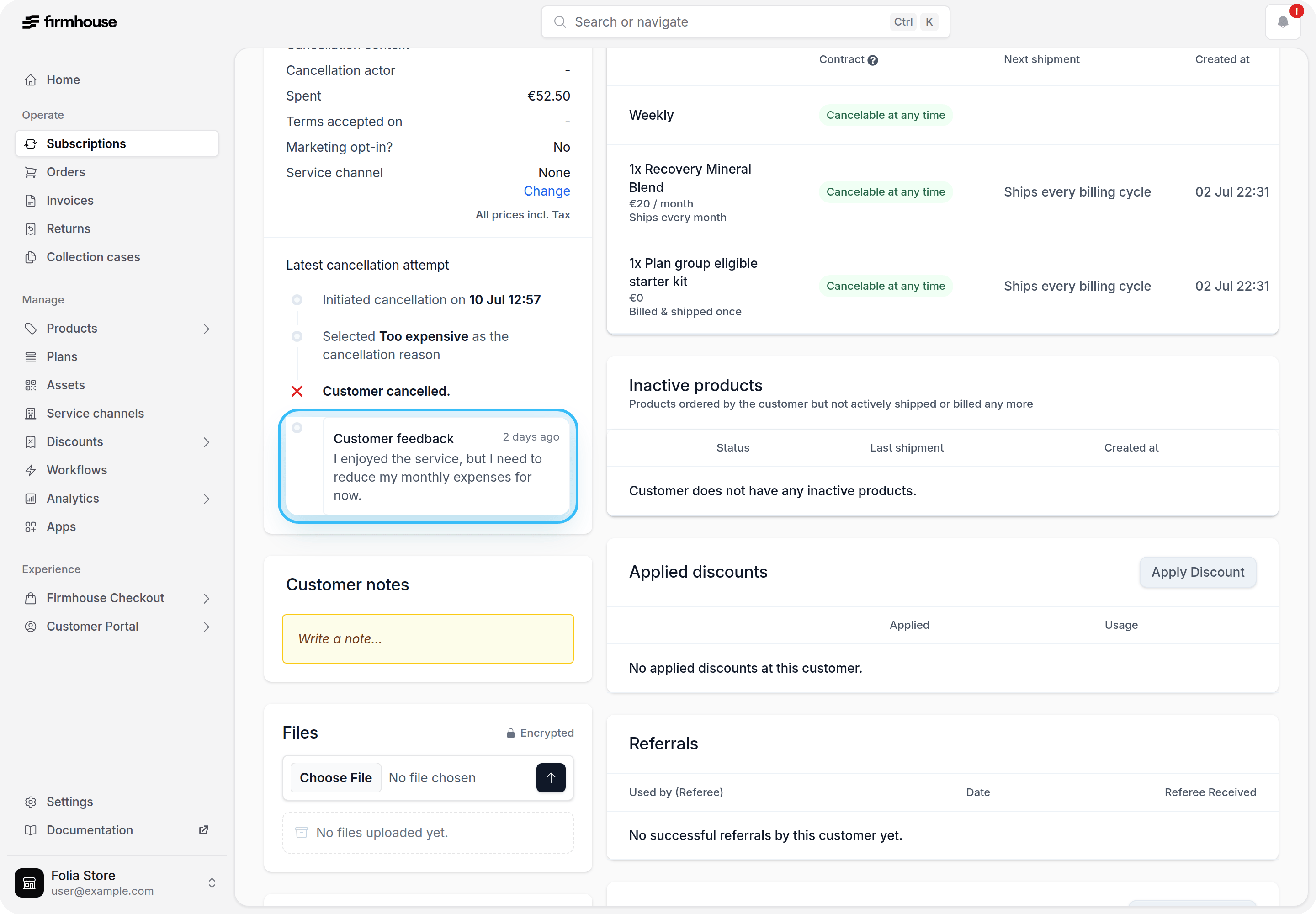
View Cancellation and Churn Prevention metrics
In your Firmhouse project, navigate to Metrics in the sidebar. Then click the Churn Prevention tab to view aggregated metrics about cancellation reasons and winback offer acceptance rates.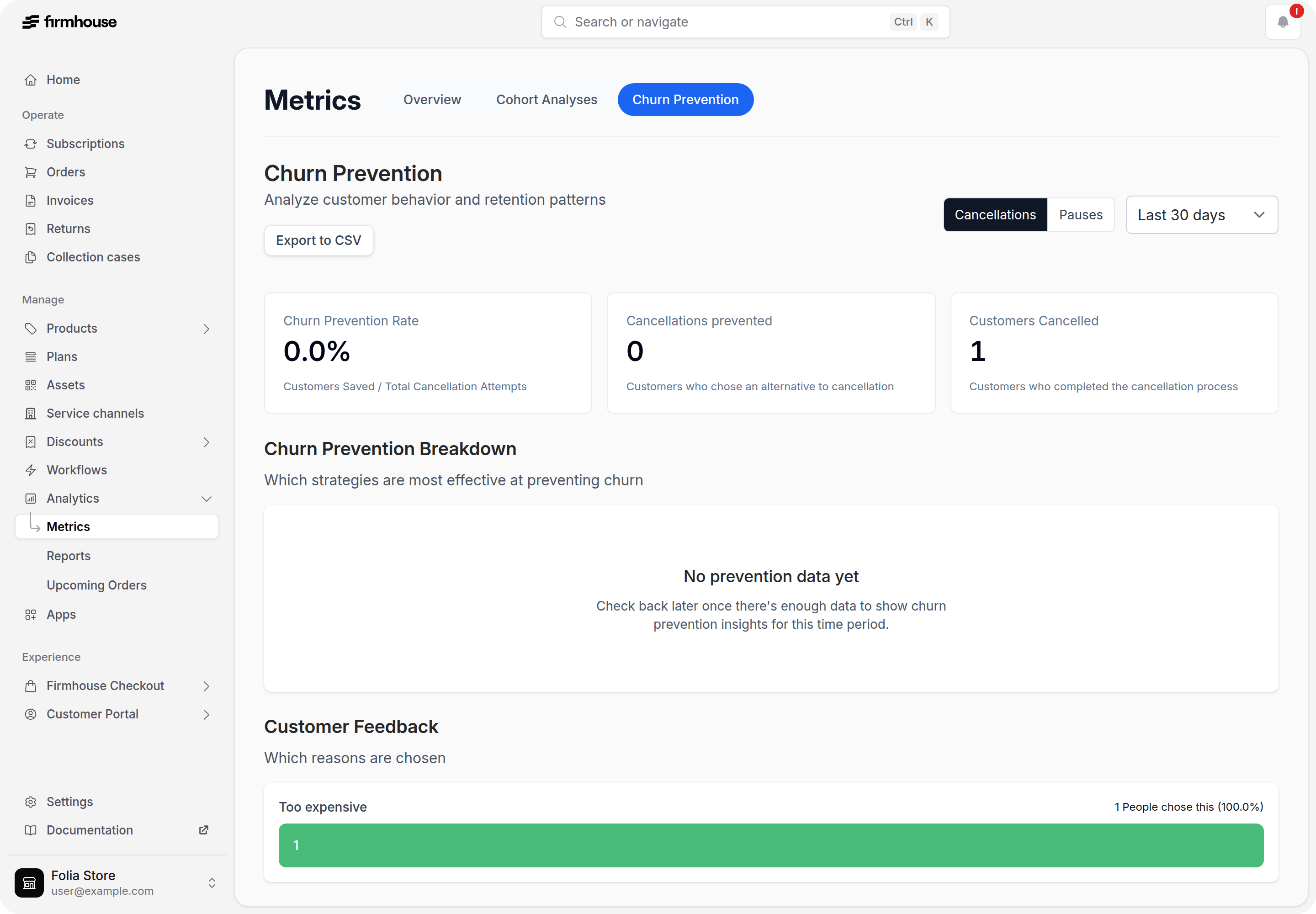
Export churn feedback
To export the reasons and feedback customers submitted during cancellation and pause requests:- In your Firmhouse project, go to Analytics > Reports.
- Open Churn feedback.
- Set Created after and Created before to choose the reporting period.
- Under Request type, select cancellation, pause, or both. Both request types are selected by default.
- Choose the fields to include and click Generate report.