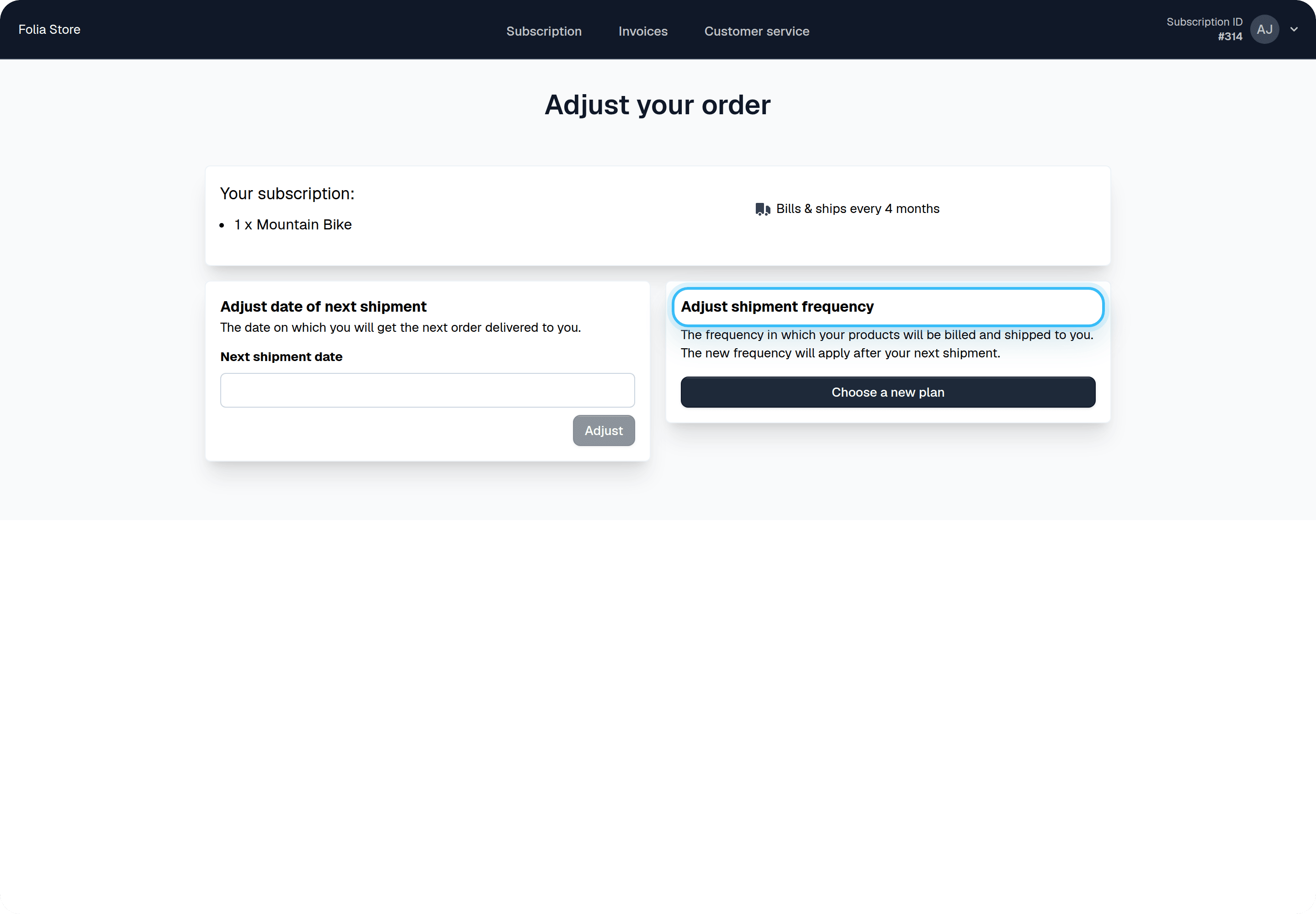
Enable the feature for your customers
By default your customers will not be able to manage the products on their subscription.Steps
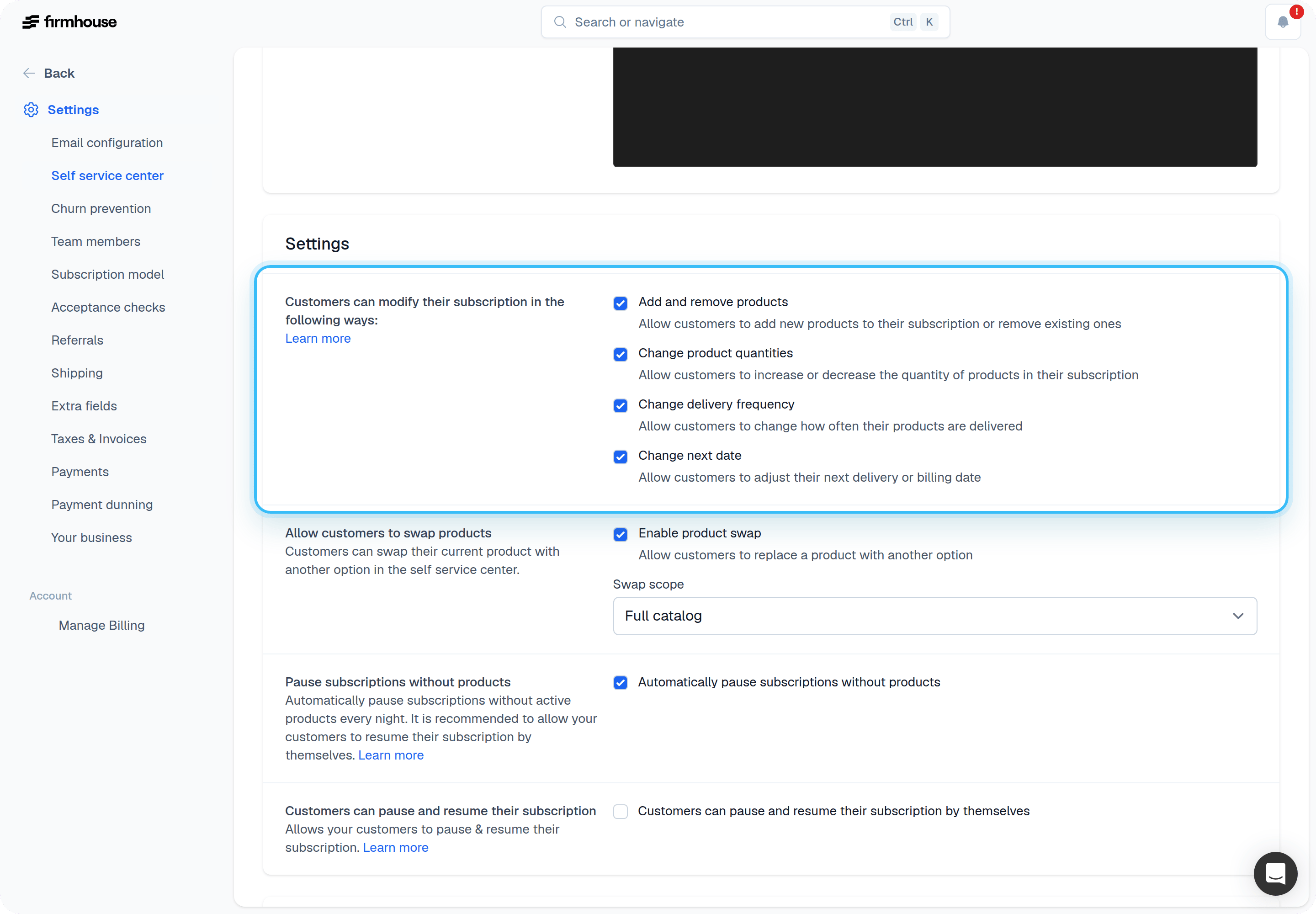
- Go to Self Service Center in the sidebar
- Scroll down to Settings
- Check the box for Add and remove products
- Click Update project
Exclude certain products (optional)
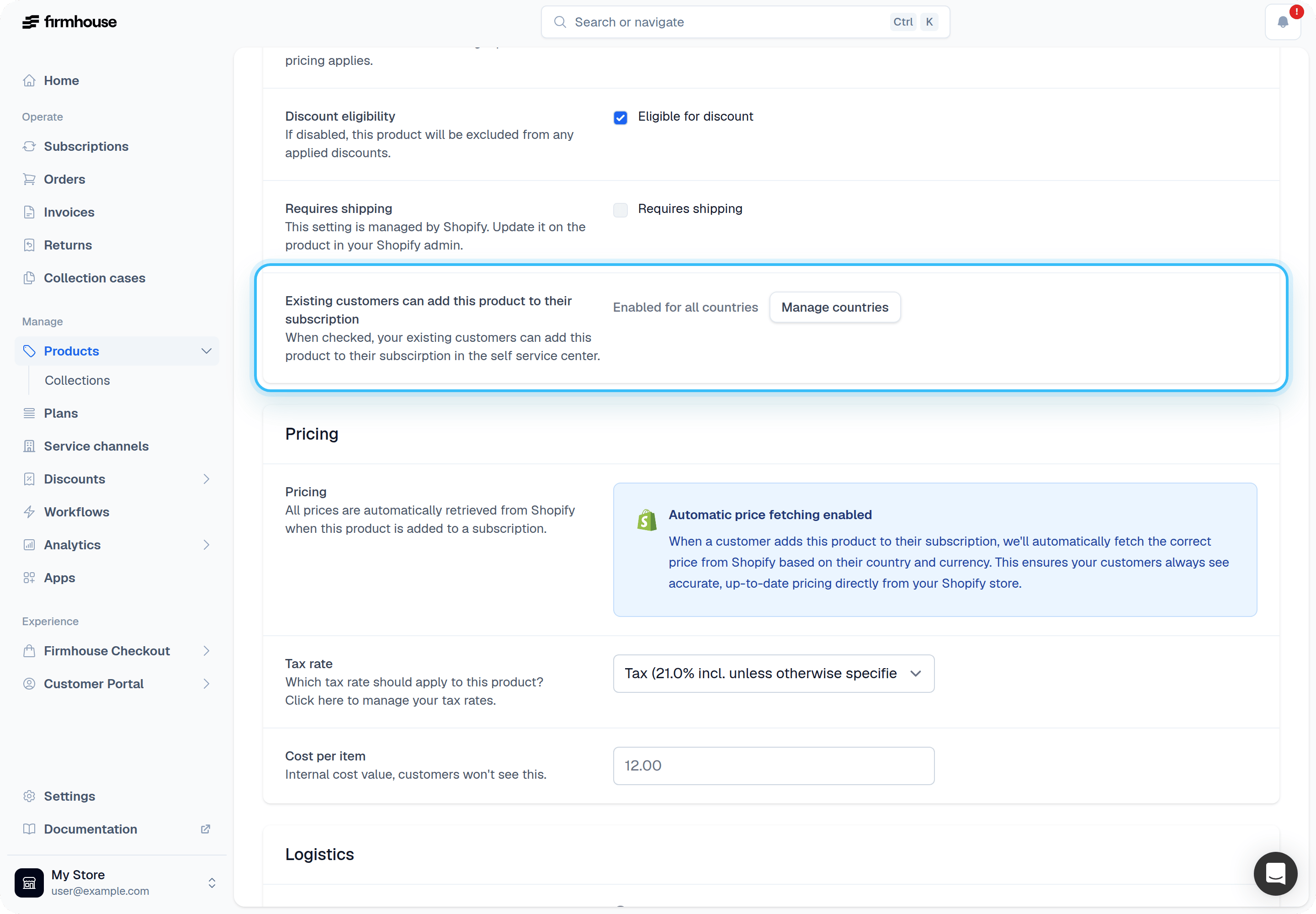
In case you want to exclude certain products from being ordered via the Self Service Center, you can disable this on a per-product basis.Steps
- Find the product you want to exclude
- Scroll down to “Existing customers can add this product to their subscription”
- Uncheck the box
- Click Save
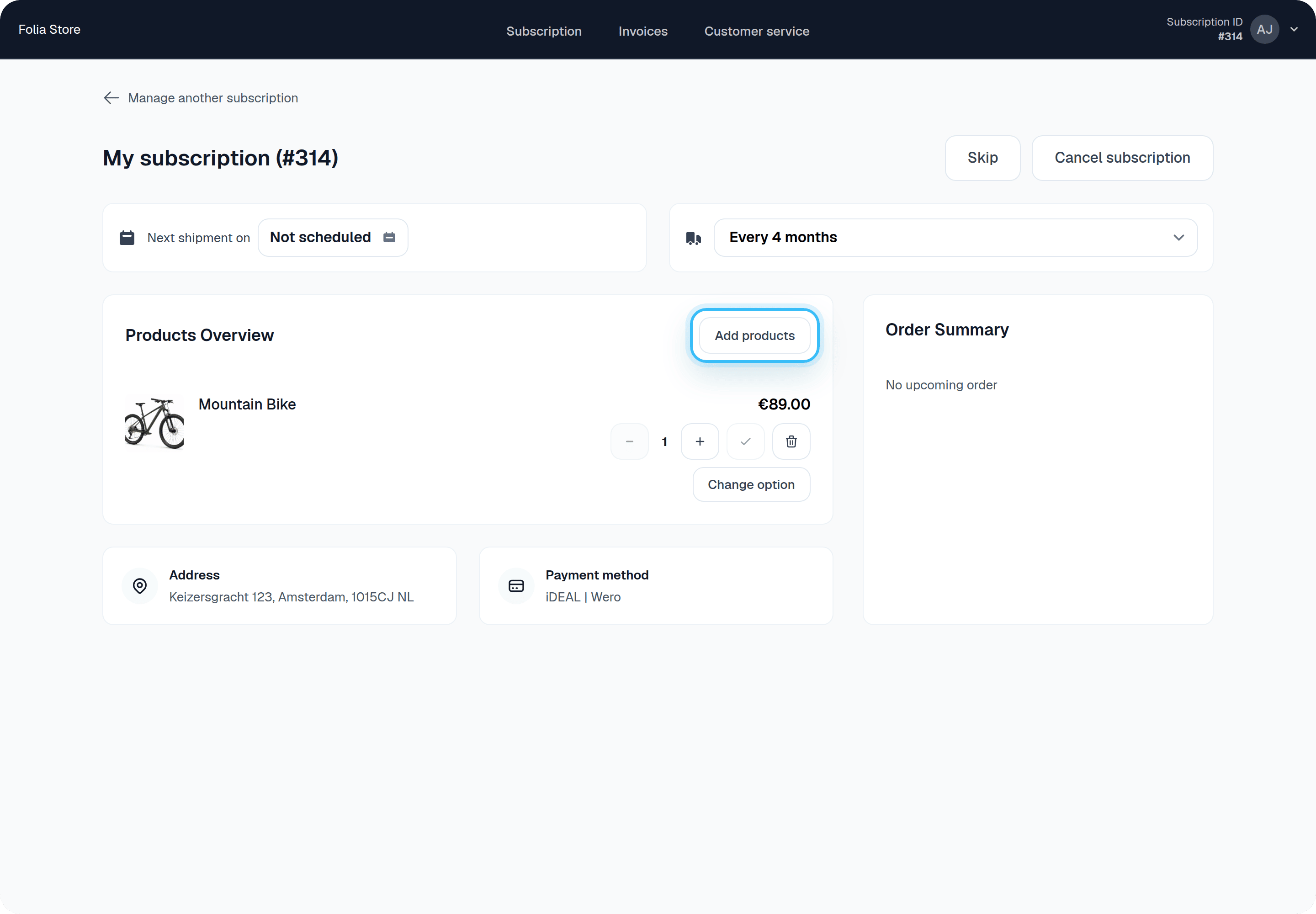
Using Shopify collections to control orderable products
If your project uses Shopify Product Collections, the Self Service Center only shows products from collections where Allow ordering products from this collection is enabled. Products not assigned to any synced collection (or only assigned to collections where ordering is disabled) will not appear in the add/manage products catalog. This is applied on top of your existing SSC product eligibility settings. See Configure collection visibility to learn how to manage collections and ordering settings in the admin.Configure collection visibility
- Go to Portal > New Features
- Enable Shopify Product Collections
- Go to Products > Collections
- Enable Allow ordering products from this collection for each collection customers can order from
Frequently asked questions
When is a newly added product billed and shipped?
The new product gets bundled with the customer’s next shipment. That’s also when it will be billed.I am using Shopify, can I use this feature as well?
Yes! This works with Shopify and also supports product variants. Get in touch with us if you want to use this in combination with Shopify.Can customers order a product as a one-off?
Customers order products with the shipment behavior you configure in Firmhouse. A recurring product remains recurring, while a product configured to ship only once is added for one shipment. By default, a ship-once product can be ordered once per subscription. For consumables such as filters or refills, you can allow customers to reorder the product after it ships. Previous owned or returned entries do not prevent another order; the product remains unavailable only while an active copy exists. Customers can adjust shipment frequency for their recurring products (for example, change it from every 4 weeks to every 15 days). For one-off products, it is not possible to adjust frequency in the self service center.