Finding and filtering customers
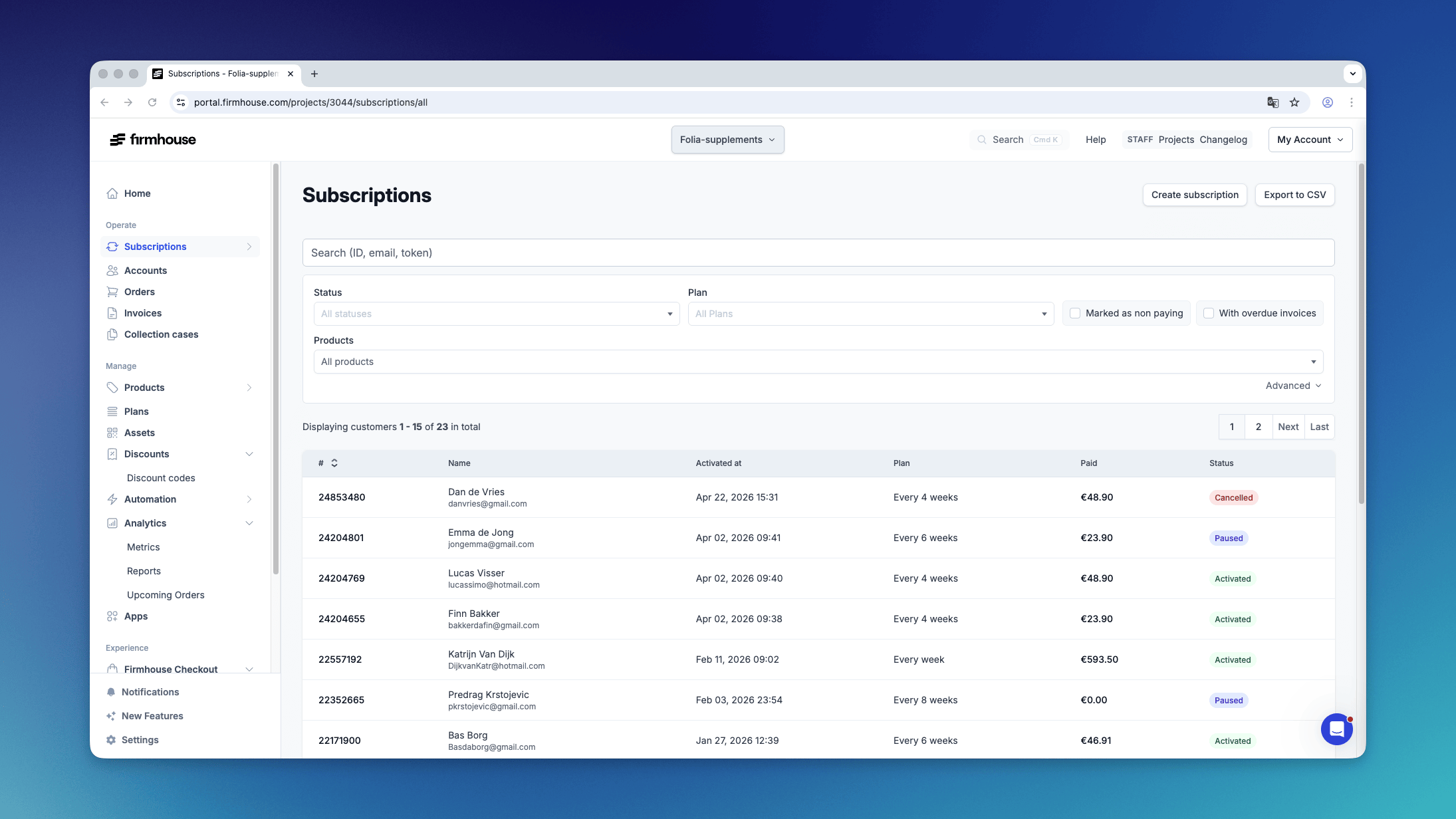
There are a few ways to search for customers in Firmhouse.Using the search bar
Simply enter a name, company name, email address or subscription ID in the search bar to quickly find a specific customer.Filters
Use the filters below the search bar to refine the list of customers.- Status — select one or more statuses to show only customers matching those statuses (e.g. Activated, Paused, Cancelled).
- Plan — select one or more plans to filter by. Only visible for plan-based projects.
- Service channel — select a service channel to show its subscriptions. Only visible when your project has service channels.
- Marked as non paying — check this box to show only customers that have been marked as non-paying.
- With overdue invoices — check this box to show only customers that have overdue invoices.
- Sent to collections — choose Yes to show customers with at least one invoice in a collection case, or No to show customers whose invoices have not been sent to collections.
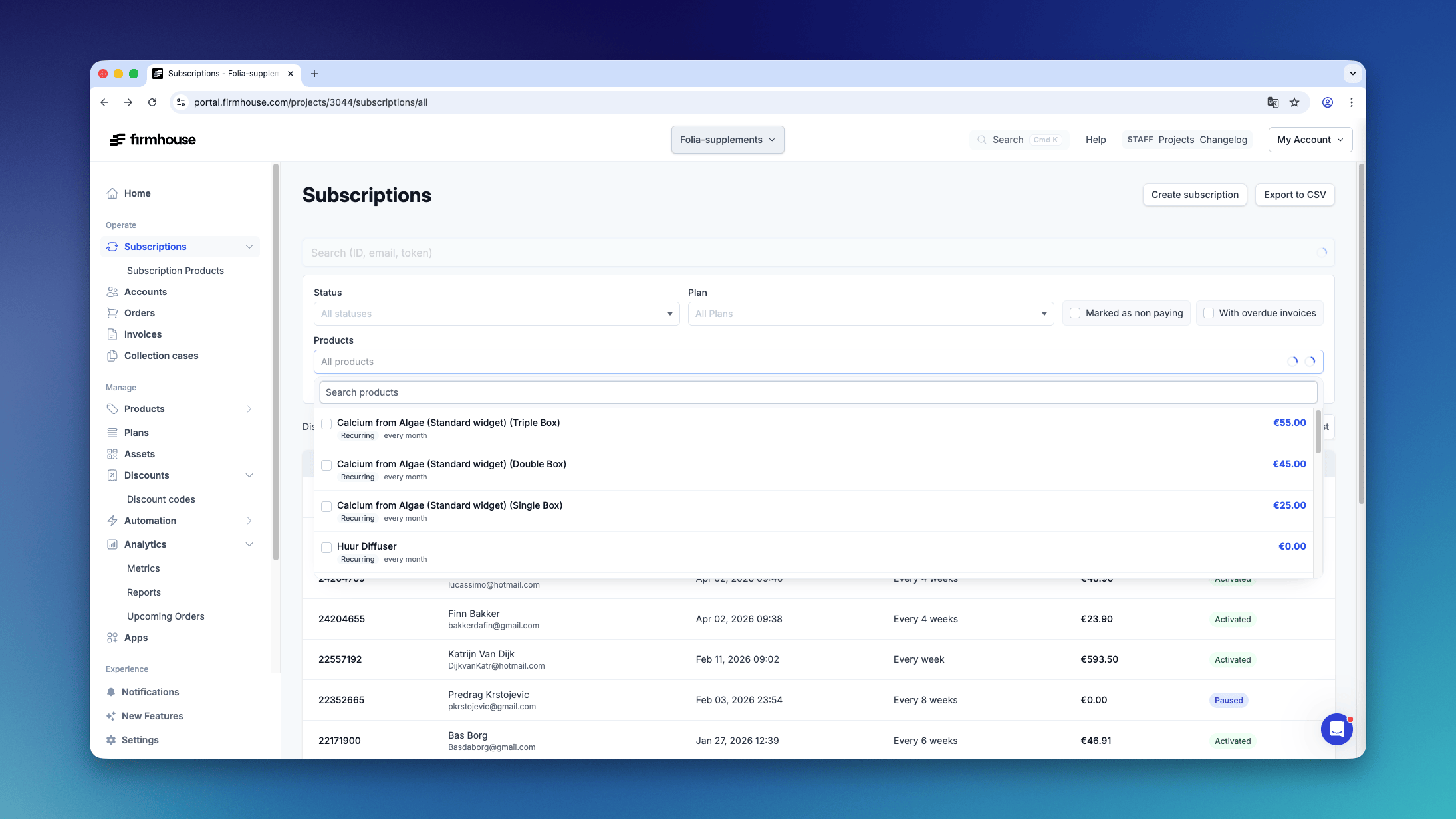
- Products — search and select one or more products. This shows customers who have ordered any of the selected products at any time. The more products you select, the more customers will appear.
- With out-of-stock products — check this box to show only customers with at least one active product that is currently out of stock. This filter only appears when your project treats out-of-stock Shopify products as unavailable for new orders.
Sorting
By default, the list of customers is sorted by ID. More recent subscriptions have a larger ID number, so this is the same as sorting them by creation date. You can sort by these other columns: Name, Activated at date, and Marked as non-paying at date (only visible when filtering by Non-paying status). To sort by a column, simply click on its title. Click it a second time to reverse the sort order.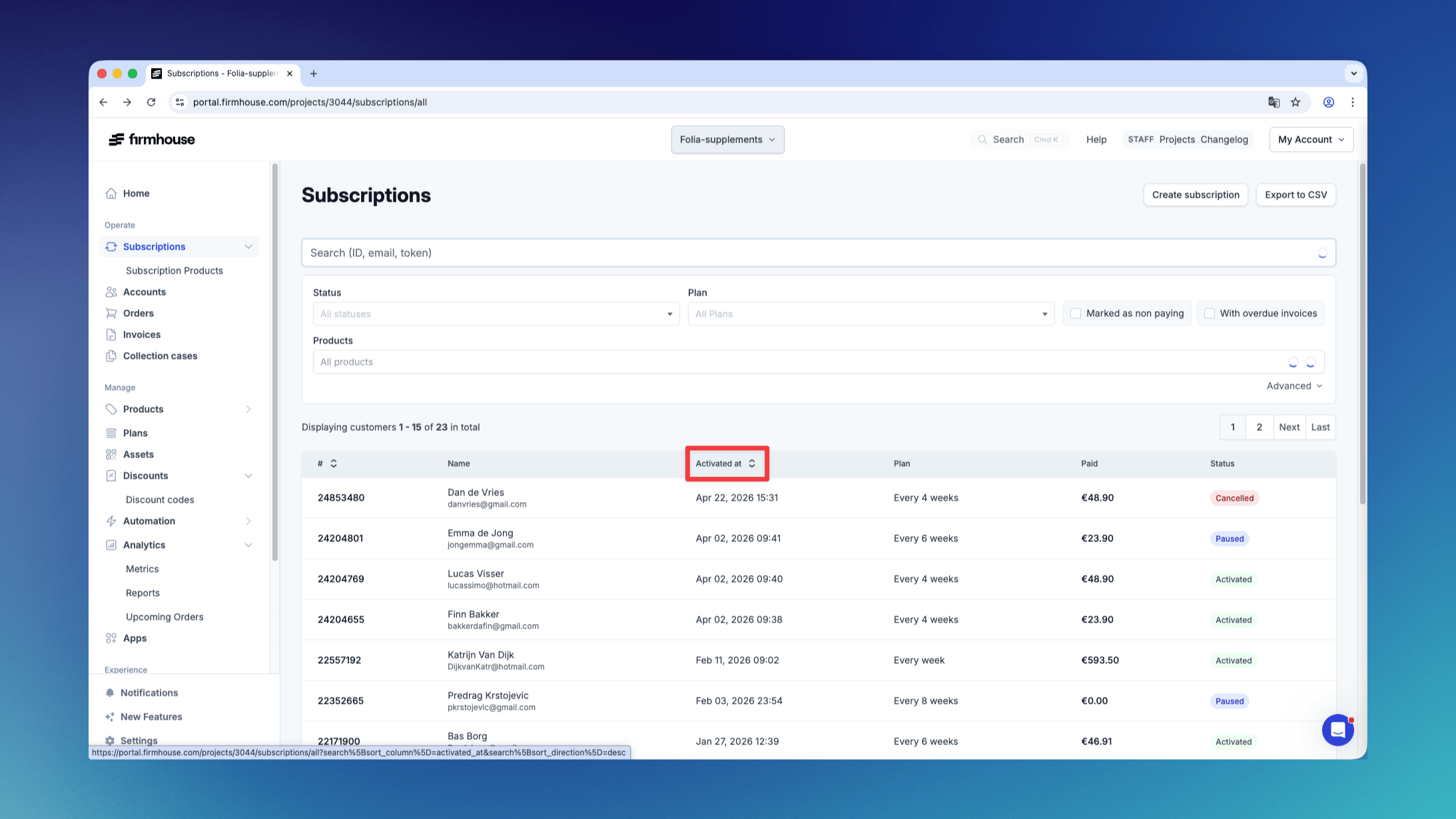
Export the list
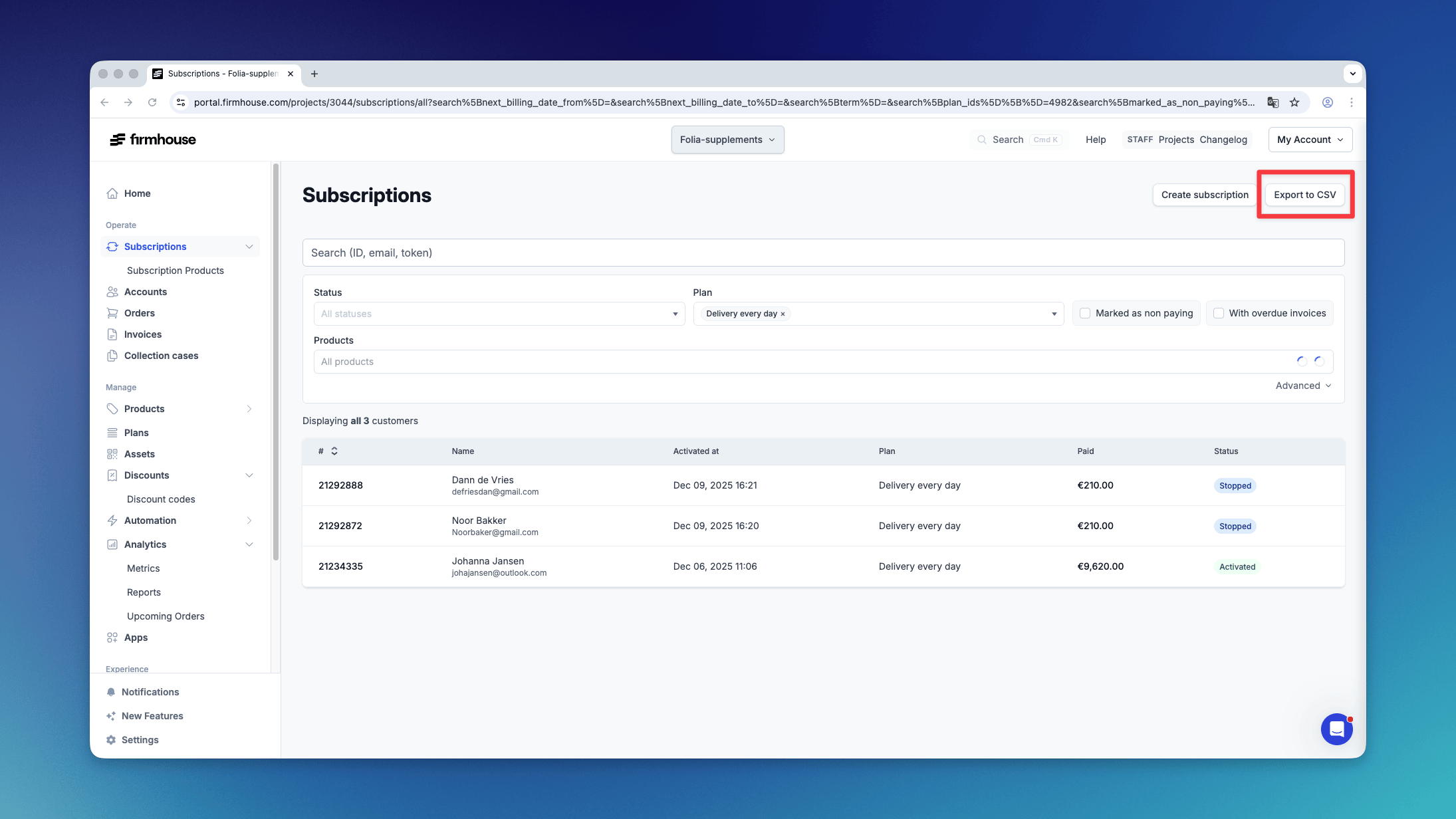
When you’re happy with the filtered and sorted list, you can quickly export it to a CSV file by clicking the “Export to CSV” button.