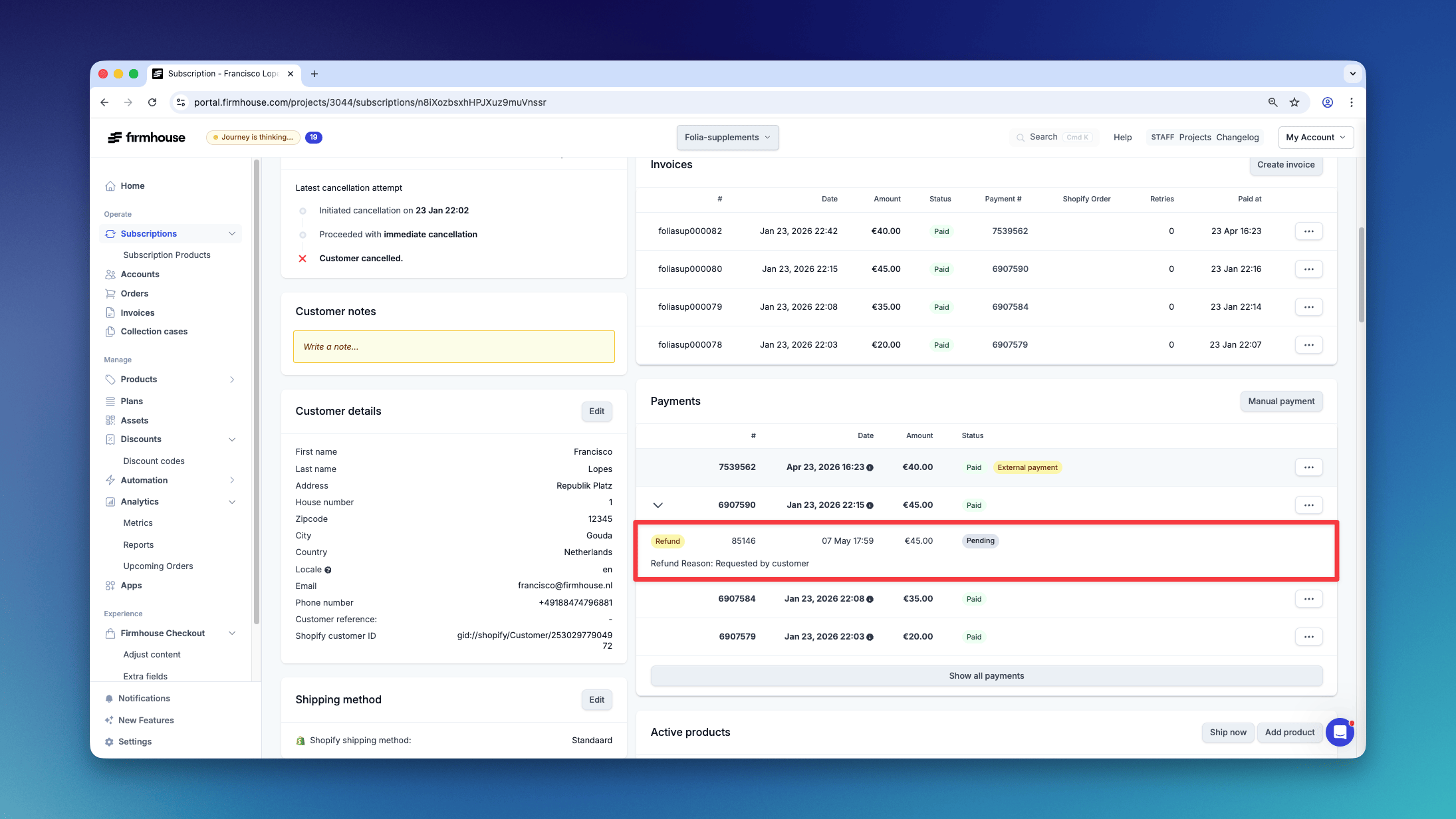
Note: Issuing a refund for a payment does not automatically generate a credit note. See additional information at the bottom of this article.
Issuing a refund for a payment
Steps
- In your Firmhouse project, find the customer you want to issue a refund for. You can do this from the customer search, the customer overview, or from an individual invoice.
- On the customer detail page, scroll down to the section called Payments.
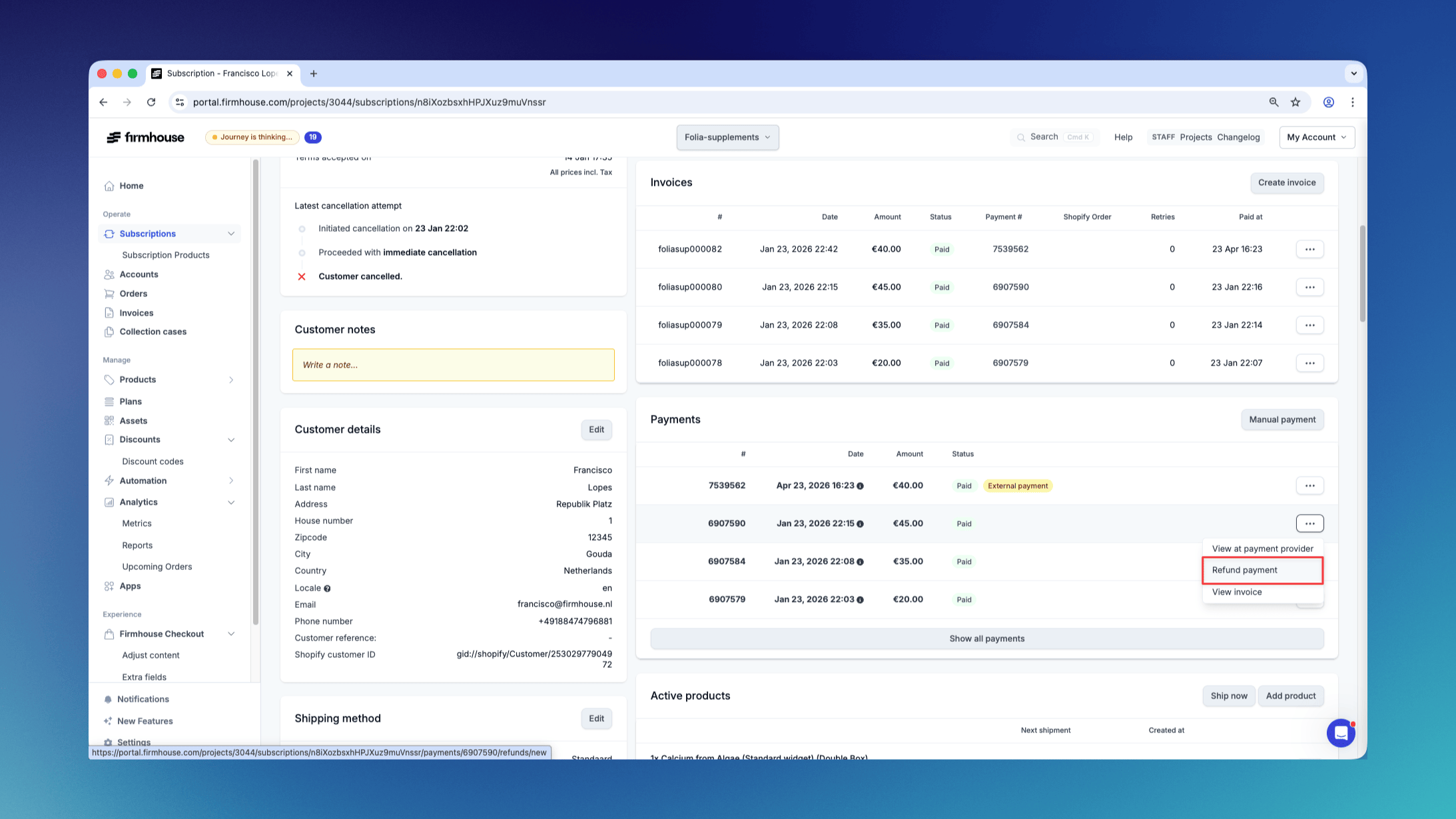
- Find the payment you want to issue a refund for and click the button with the three horizontal dots to open the action menu for the payment.
- Click Refund payment. This will open a dialog.
- In the dialog enter the amount and the reason for the refund.
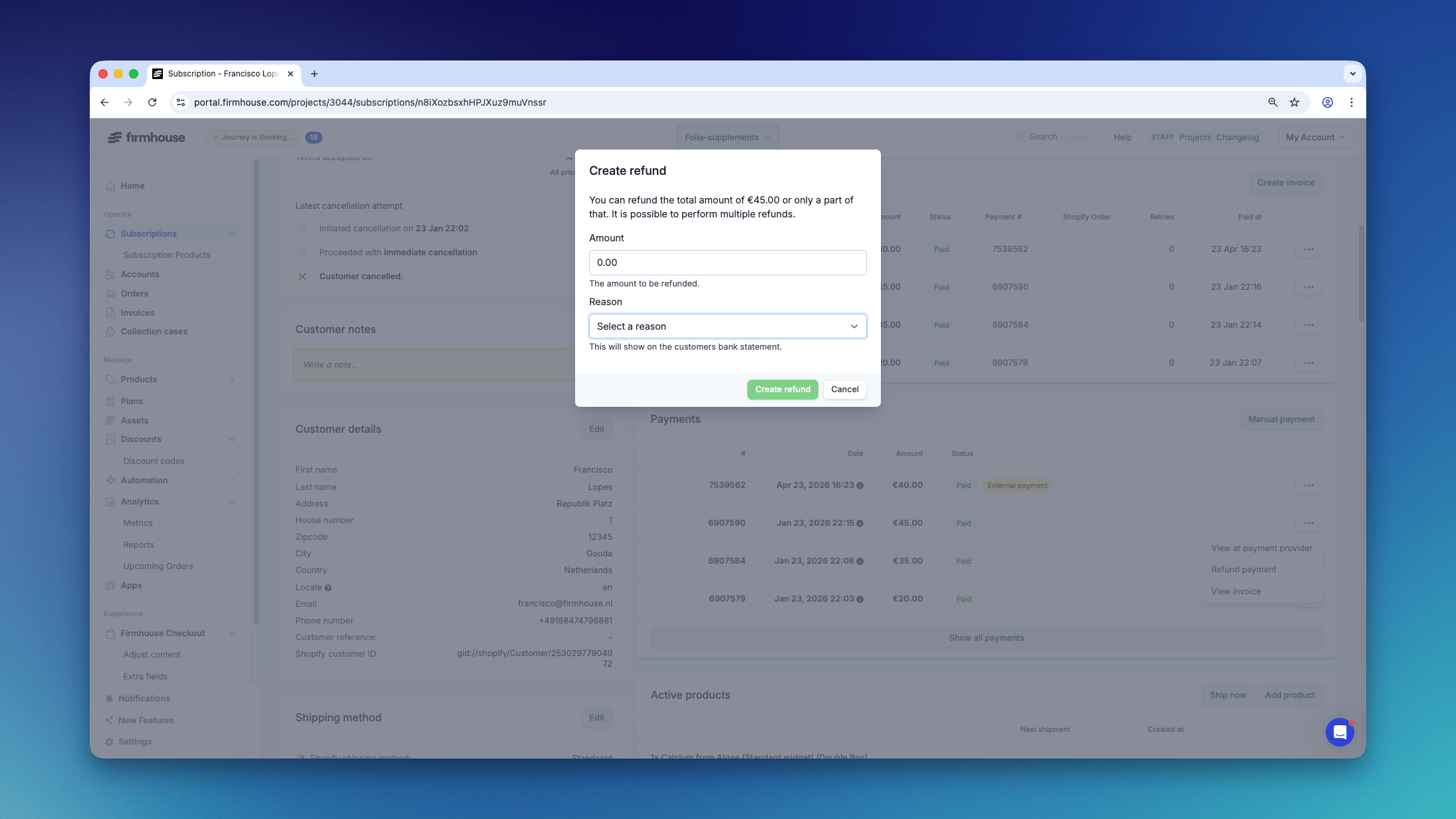
- Click Create refund.
Checking the status of a refund
If a refund has been issued you can monitor its status from the Payments overview on a customer detail page. The refund and its status will be visible after clicking the icon with the plus-sign [+].