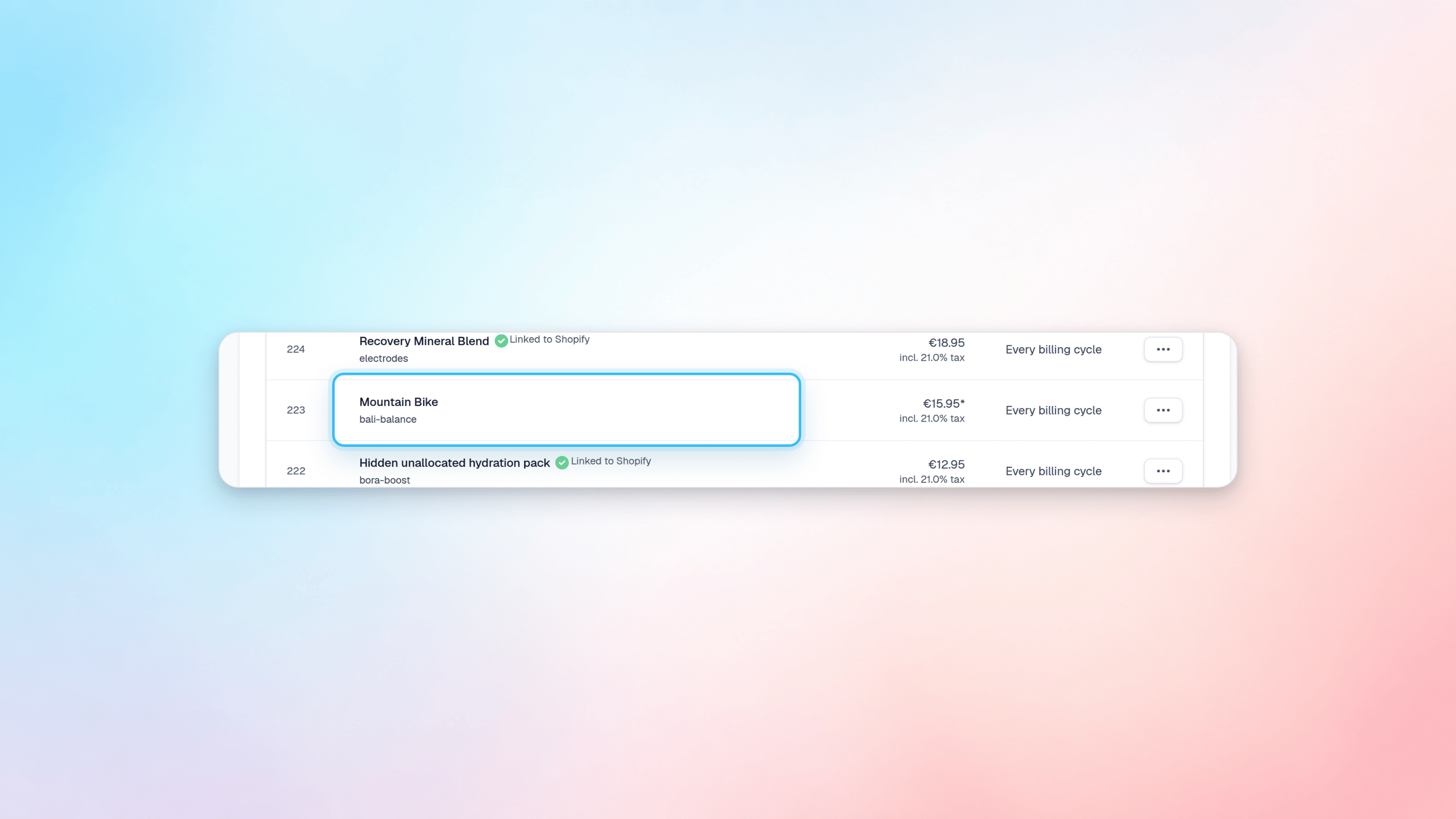
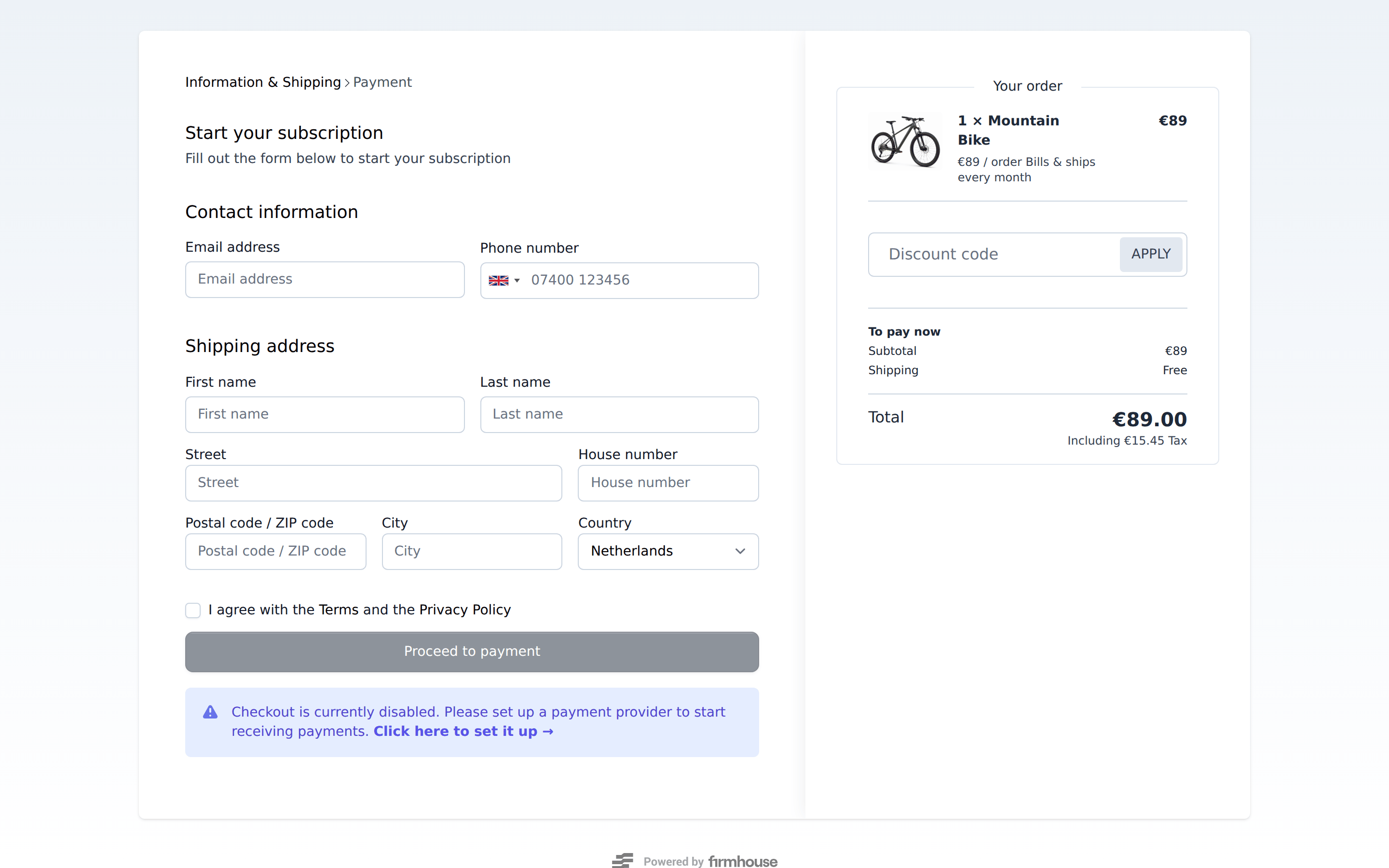
Checkout pages for smart order-based subscriptions
Steps
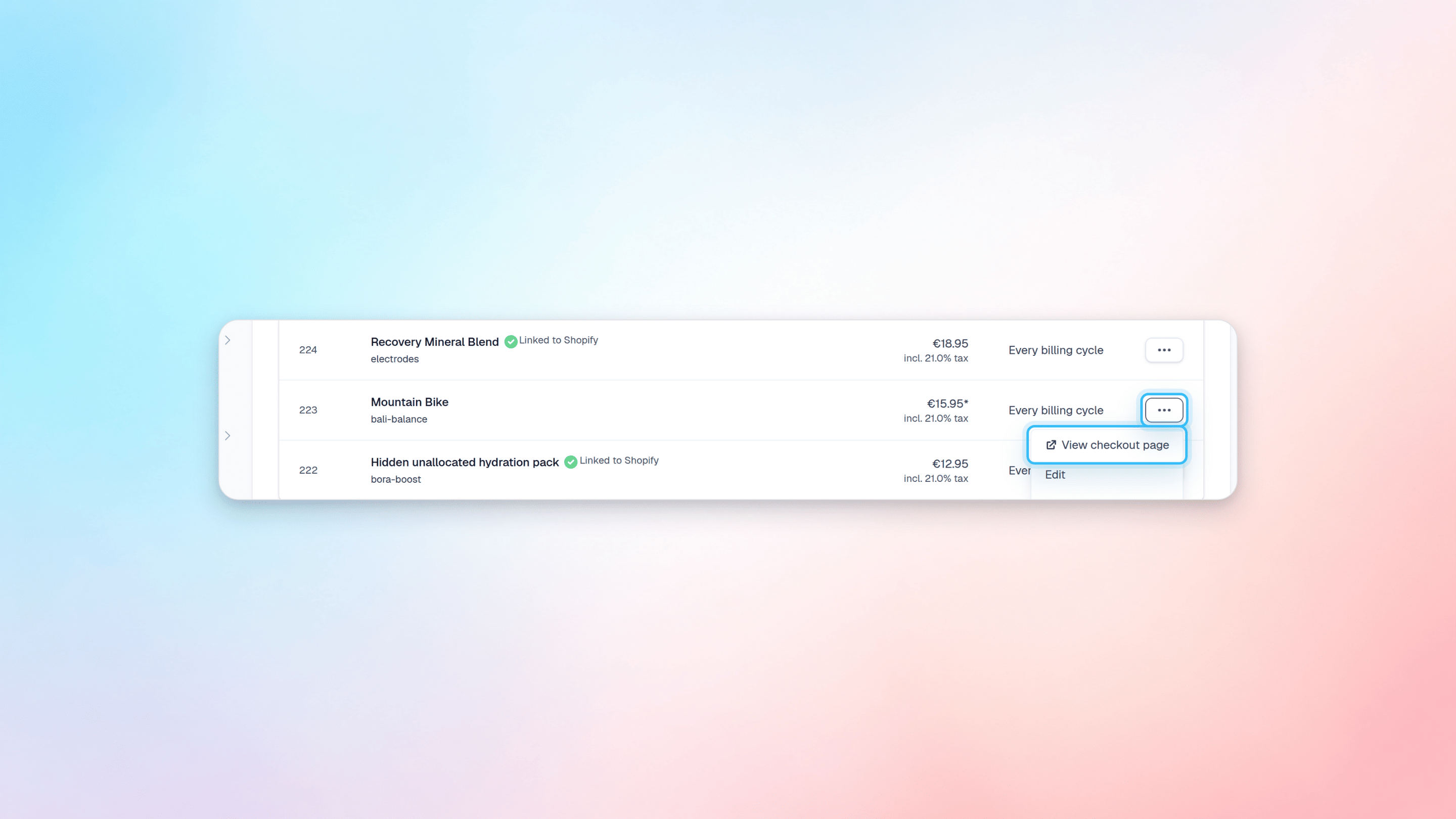
- Go to Products and find the product you want to get the payment link for.
- Click on the three horizontal dots menu.
- Click on View Payment Page. This will open the product’s payment page in a new window.
Adjusting the quantity
By default the quantity of a product is set to 1. If you want to adjust that, click on the URL in your browser and go to the end of the URL. There you will find a number that represents the quantity. Adjust it as you wish. As of right now it’s not possible yet for your customers to change the quantity of a product in the checkout.Product as Service Subscription
Steps
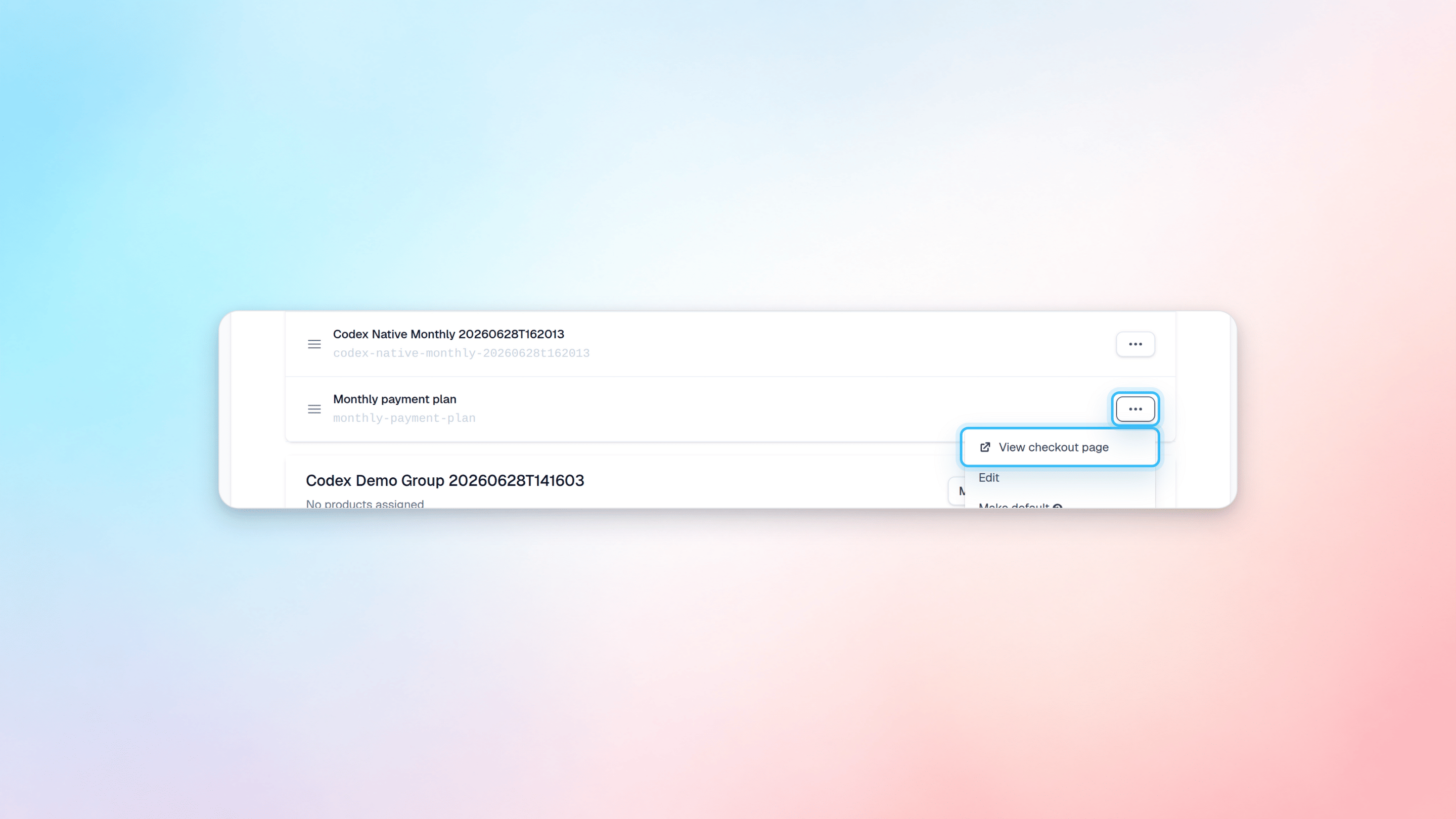
- Go to Plans and find the plan you want to get the payment link for.
- Click on the three horizontal dots menu.
- Click on View Payment Page. This will open the plan’s payment page in a new window.
Creating a link that checks out to a plan AND products
If you need to create a link that checks out to a plan and one or several products, you can do that by adjusting the URL. To do that you will need the product slug. You can find that if you navigate to Products in the main menu. The slug is located right underneath a product’s name.