> ## Documentation Index
> Fetch the complete documentation index at: https://docs.firmhouse.com/llms.txt
> Use this file to discover all available pages before exploring further.
# Add or remove products on a subscription
> Add or remove products on an existing customer subscription in Firmhouse, including add-ons and adjustments needed after a plan change.
This guide explains how to add or remove products to/from a customer's subscription. It covers two common use cases: adjusting products after a plan change, and adding additional products (add-ons) to an existing subscription.
> **Note:** Depending on your project configuration, the sidebar may show this page as **Subscriptions** or **Customers**. The functionality is the same in both cases.
## Adjust Products After a Plan Change
If a customer changed their plan (see [Change the active plan of a subscription](/manage/subscriptions/change-plan) for more details), you may also want to adjust the products that came with that plan change.
### Steps
1. Go to **Customers** and look for the customer
2. Scroll down to the **Active Products** section
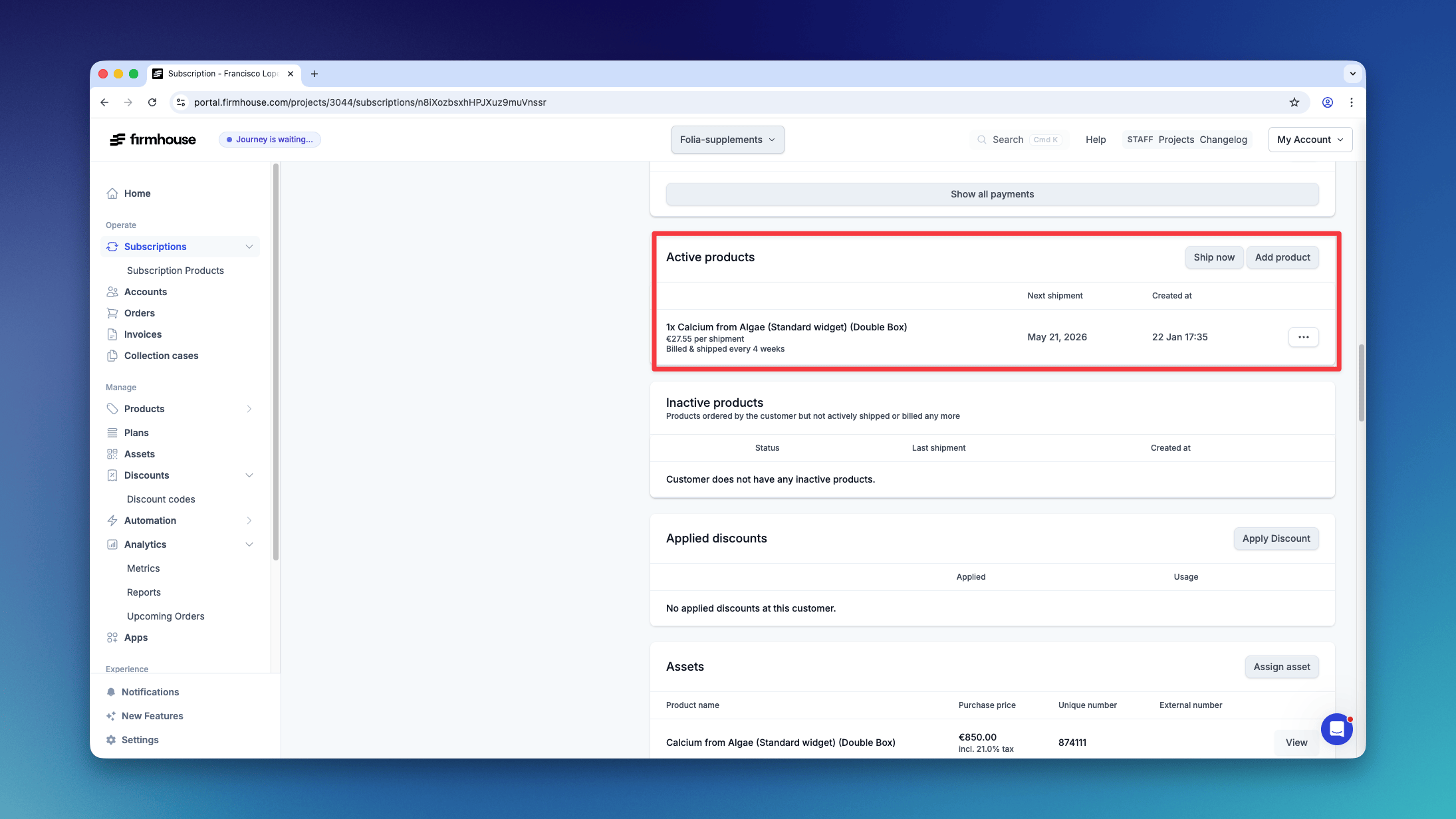 A product already on the subscription that has since become unavailable or, when your project [treats out-of-stock Shopify products as unavailable for new orders](/configure/subscription-options/skip-orders-with-unavailable-products#use-shopify-stock-levels), gone out of stock, shows a red **Unavailable** or **Out of stock** label next to it in this list.
### To Add a Product
1. Click on **Add product** in the top right
2. Choose the product to add from the dropdown. You can search and select any available product in your project. Products that are not allocated to the subscription's plan group are labeled "Not eligible for this subscription's plan" in the search results. When you select such a product, a warning appears—you can still add it manually, but customers won't be able to add it themselves in the Self Service Center. If you need to make the product available to customers, you can [update the plan group eligibility](/shopify/selling-plans-and-groups) for that product.
When **Treat out-of-stock Shopify products as unavailable for new orders** is enabled, products with no Shopify stock remain available to staff in this dropdown and are labeled **Out of stock**. This lets you make an intentional exception for an existing subscription. Adding the product does not change its stock status: customers still cannot add or swap to it in the customer portal, and your configured [unavailable-product order behavior](/configure/subscription-options/skip-orders-with-unavailable-products) still applies.
3. Under **Product behavior**, choose how the product should be added:
* **Recurring product** — Uses the product's configured shipping schedule. When the selected product is configured as a one-time purchase, this option changes to **One-time product** and the product is billed and shipped once.
* **Next order only** — Ships once with the next order, then is automatically removed from the subscription.
* **Already owned** — Records a product the customer already owns, without future shipping or billing.
4. Set the **Quantity** (number of units per shipment).
A product already on the subscription that has since become unavailable or, when your project [treats out-of-stock Shopify products as unavailable for new orders](/configure/subscription-options/skip-orders-with-unavailable-products#use-shopify-stock-levels), gone out of stock, shows a red **Unavailable** or **Out of stock** label next to it in this list.
### To Add a Product
1. Click on **Add product** in the top right
2. Choose the product to add from the dropdown. You can search and select any available product in your project. Products that are not allocated to the subscription's plan group are labeled "Not eligible for this subscription's plan" in the search results. When you select such a product, a warning appears—you can still add it manually, but customers won't be able to add it themselves in the Self Service Center. If you need to make the product available to customers, you can [update the plan group eligibility](/shopify/selling-plans-and-groups) for that product.
When **Treat out-of-stock Shopify products as unavailable for new orders** is enabled, products with no Shopify stock remain available to staff in this dropdown and are labeled **Out of stock**. This lets you make an intentional exception for an existing subscription. Adding the product does not change its stock status: customers still cannot add or swap to it in the customer portal, and your configured [unavailable-product order behavior](/configure/subscription-options/skip-orders-with-unavailable-products) still applies.
3. Under **Product behavior**, choose how the product should be added:
* **Recurring product** — Uses the product's configured shipping schedule. When the selected product is configured as a one-time purchase, this option changes to **One-time product** and the product is billed and shipped once.
* **Next order only** — Ships once with the next order, then is automatically removed from the subscription.
* **Already owned** — Records a product the customer already owns, without future shipping or billing.
4. Set the **Quantity** (number of units per shipment).
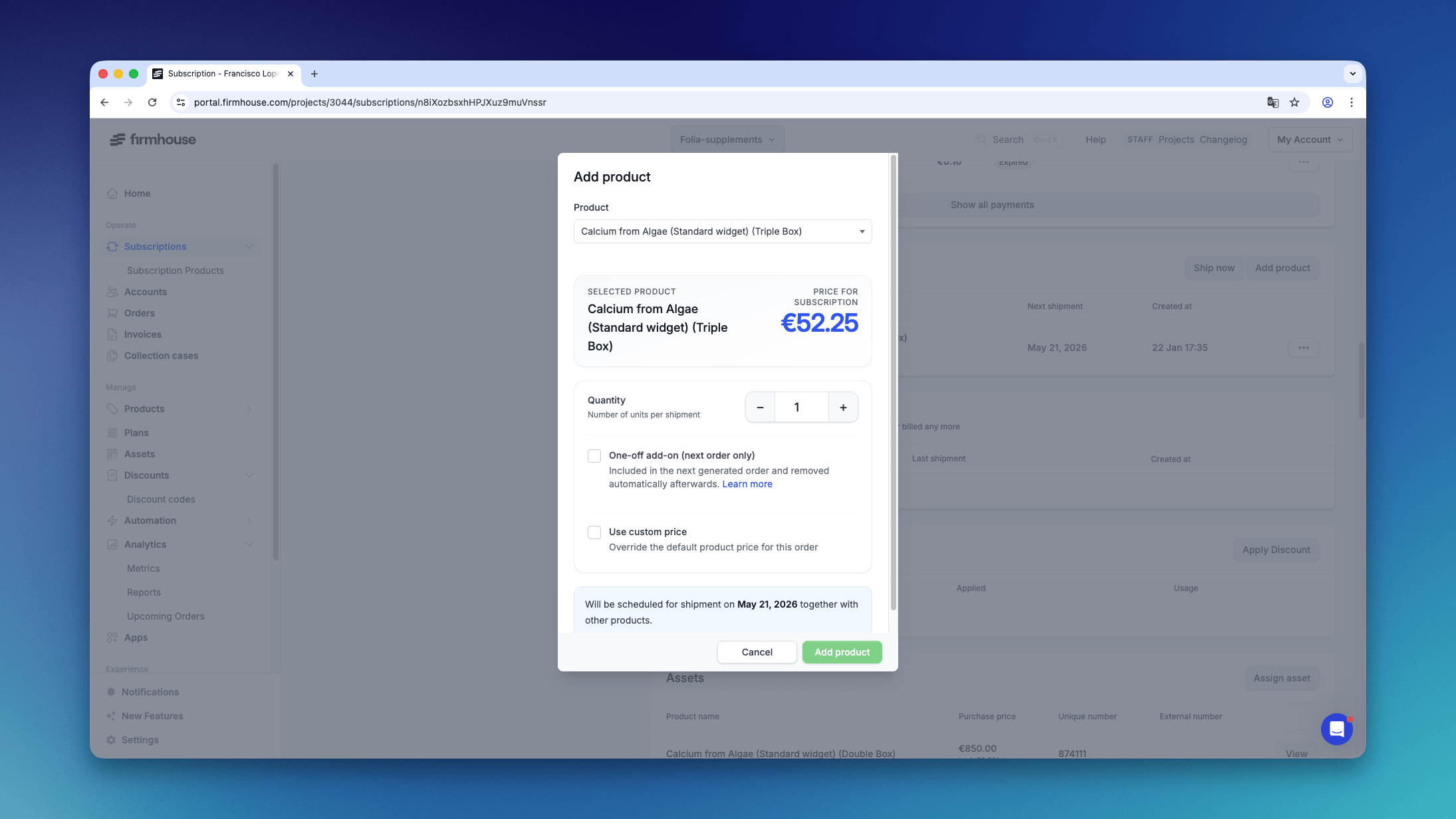 For recurring products, the **Shipping date** field indicates the day that the order will get created. For one-off add-ons, this field is not required since the product is included whenever the next order is generated.
### To Remove a Product
1. Find the product under **Active Products**.
2. Open the actions menu next to the product.
3. Click **Remove** and confirm the removal.
Removing a product changes the subscription's recurring amount. It does not automatically initiate a return or another logistics process.
#### Remove a Product Under Minimum Commitment
Before removing a product from a subscription with a minimum commitment, you may need to address the commitment for that individual product. First, check the product under **Active Products**.
##### If You See a Minimum Commitment Label
Click the **Minimum commitment** label next to the product.
For recurring products, the **Shipping date** field indicates the day that the order will get created. For one-off add-ons, this field is not required since the product is included whenever the next order is generated.
### To Remove a Product
1. Find the product under **Active Products**.
2. Open the actions menu next to the product.
3. Click **Remove** and confirm the removal.
Removing a product changes the subscription's recurring amount. It does not automatically initiate a return or another logistics process.
#### Remove a Product Under Minimum Commitment
Before removing a product from a subscription with a minimum commitment, you may need to address the commitment for that individual product. First, check the product under **Active Products**.
##### If You See a Minimum Commitment Label
Click the **Minimum commitment** label next to the product.
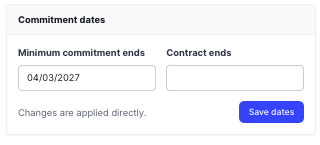
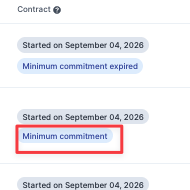 In the window that opens:
1. Set **Minimum commitment ends** to a date in the past.
2. Click **Save dates**.
3. Open the product's actions menu and click **Remove**.
In the window that opens:
1. Set **Minimum commitment ends** to a date in the past.
2. Click **Save dates**.
3. Open the product's actions menu and click **Remove**.
 ##### If You Do Not See a Minimum Commitment Label
If the commitment is not shown next to the product in the overview:
1. Open the actions menu next to the product.
2. Click **Edit**.
3. Clear **Enforce subscription commitments**.
4. Click **Save changes**.
5. Open the actions menu again and click **Remove**.
##### If You Do Not See a Minimum Commitment Label
If the commitment is not shown next to the product in the overview:
1. Open the actions menu next to the product.
2. Click **Edit**.
3. Clear **Enforce subscription commitments**.
4. Click **Save changes**.
5. Open the actions menu again and click **Remove**.
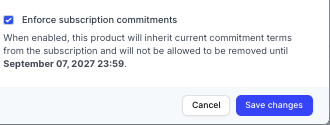 > **Note:** The available option depends on your project and product configuration.
Only change a product's commitment when removing it is consistent with your agreement with the customer.
To remove products from multiple subscriptions at once, use [subscription product batch operations](/manage/subscriptions/batch-update-subscription-products). Firmhouse uses the same removal checks as the single-subscription action.
## Informing the Customer
There is no automated email that informs the customer about a change in products. Make sure to contact the customer manually and confirm the change to their subscription.
> **Note:** The available option depends on your project and product configuration.
Only change a product's commitment when removing it is consistent with your agreement with the customer.
To remove products from multiple subscriptions at once, use [subscription product batch operations](/manage/subscriptions/batch-update-subscription-products). Firmhouse uses the same removal checks as the single-subscription action.
## Informing the Customer
There is no automated email that informs the customer about a change in products. Make sure to contact the customer manually and confirm the change to their subscription.